MCP Server
The Model Context Protocol (MCP) is a specialized protocol and interface that enables CompanyGPT to communicate seamlessly with external services. These services run on customer-specific MCP servers, which often host complex backend functionalities or orchestrate specific business processes. Originally developed by Anthropic, the MCP is now supported by almost all AI applications, allowing CompanyGPT to draw on a wide range of existing MCP servers. If necessary, custom servers can be developed to connect almost any application to CompanyGPT.
The MCP is based on a client-server architecture in which CompanyGPT, as the client, consumes the “tools” provided by the server. An MCP server can contain any number of such tools, with the integrated LLM independently deciding which tool to use and which parameters to pass. After execution, the LLM evaluates the results and formulates an appropriate response to the user.
More information about MCP can be found here: Prompt Engineering / MCP
Using MCP servers
Section titled “Using MCP servers”The MCP servers available to you are listed in the left sidebar under MCP Settings. There you see the status of each server. If a server requires a sign-in or your own key, you can sign in there with Connect or configure the server.
In the chat, you select MCP servers via the plus icon in the chat input (Attach and tools) in the MCP Servers section; Show All opens the complete list. Next to each server you see its status there: Connected, Disconnected or Needs Auth (the server requires a sign-in). In agents, you add MCP servers via the Tool Library.
Depending on your environment, the MCP servers of the add-ons are already set up, for example Files (companyFILES), ai-search (companyRAG), Microsoft365 (companyM365), companyTRANSLATE (companyTRANSLATE), companyTRANSCRIBE (companyTRANSCRIBE), Learn (companyLEARN), Knowledge (companyKNOWLEDGE) and WebFetch (Web Search & WebFetch).
Add MCP Server
Section titled “Add MCP Server”Only people whose role allows it can create new MCP servers. By default, regular users cannot create MCP servers. Administrators assign the permissions for using, creating, and sharing MCP servers in companyADMIN under Access → Roles → open a role → companyGPT tab, feature MCP servers. Which domains are allowed for MCP servers is set by administrators in companyADMIN under Configuration → MCP domains.
With the corresponding permission, the + at the top of MCP Settings (tooltip Add MCP) opens the Add MCP Server dialog.

MCP server properties
Section titled “MCP server properties”The following properties can be assigned:
- Icon
optional: An icon that is displayed in the overview - Name: The name of the MCP server, visible in the overview and in each selection
- Description
optional: A description that is displayed in the overview - MCP Server URL: The URL for the MCP server. These URLs can be for internal services (within the cluster) or MCP server URLs accessible via the Internet.
- Transport: Streamable HTTPS or SSE (specified by the server)
- Authentication:
- None (Auto-detect): Automatic detection with OAuth
Dynamic Client Registrationor without authentication - API Key: Authentication with an API key, selectable whether one API key applies to all users or each user provides their own key.
- OAuth: OAuth 2.1 compliant client registration with client ID, secret, redirect URI, authorization and token URL.
- On-Behalf-Of (OBO): The MCP server is called on behalf of the signed-in person. Under OBO Scopes, enter the scopes requested for the MCP server. This requires sign-in via OpenID Connect, e.g. Entra ID. The option only appears with the Configure OBO permission (see Roles), which by default only the ADMIN role has.
- None (Auto-detect): Automatic detection with OAuth
- I trust this application: Checkbox for confirmation.
Once initialization is successful, the MCP server is displayed under MCP Settings in the left sidebar and can be used via Chat or in Agents.
Share MCP Server
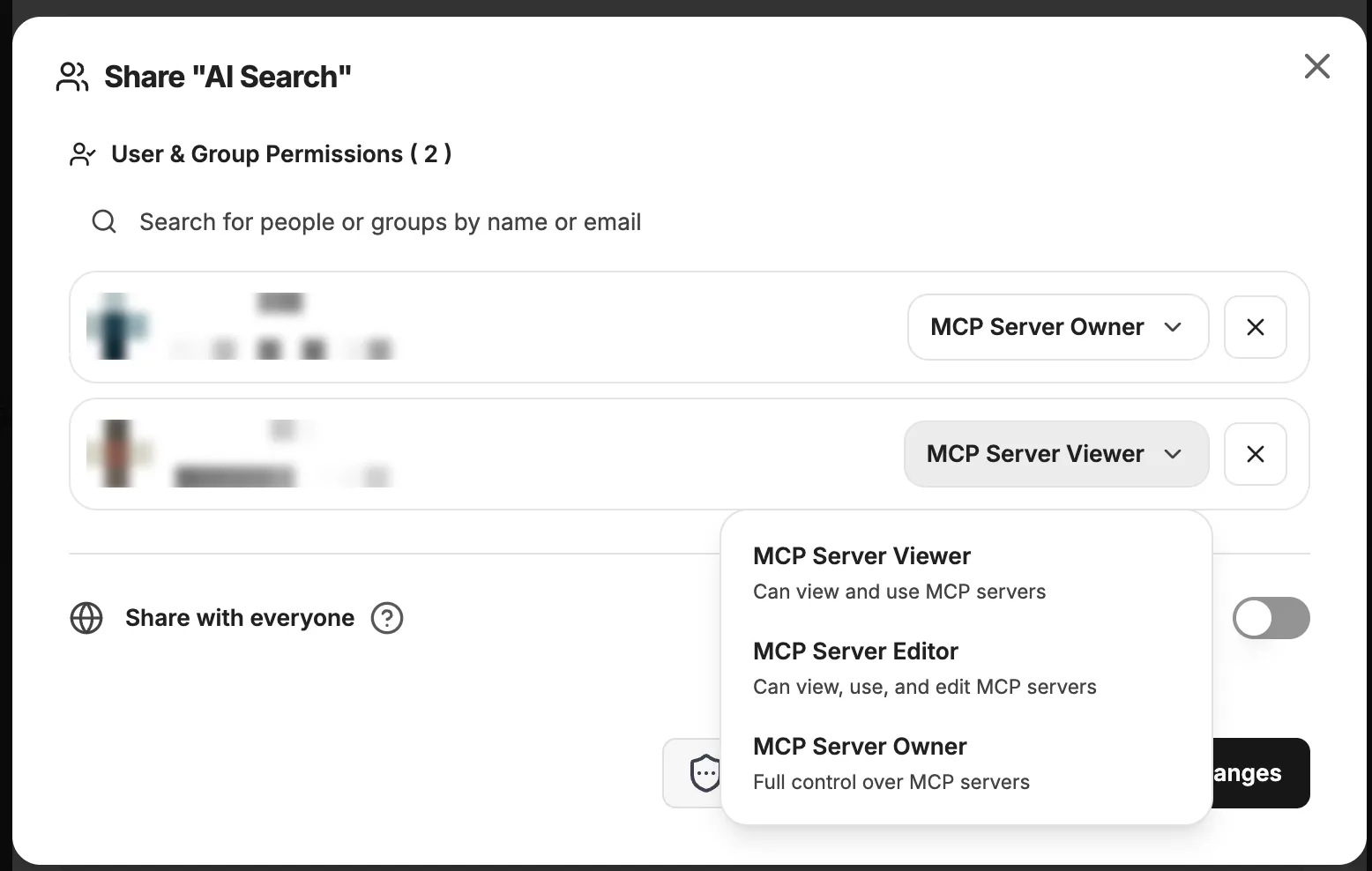
Section titled “Share MCP Server”Once an MCP server has been added, it can be shared if your role allows sharing. To do this, open the server under MCP Settings in the left sidebar via Edit. In the Edit MCP Server dialog, the familiar share menu can then be accessed:

In the detail menu, you can select with whom and with what rights the MCP server should be shared.