
Prompts
Prompts in CompanyGPT are prompt templates that can be saved and used at any time. The templates are independent of the AI model or agent and can also be used with any available model or agent.
Prompt templates are located in the left sidebar under Prompts. There you can view, create, modify, and use them.
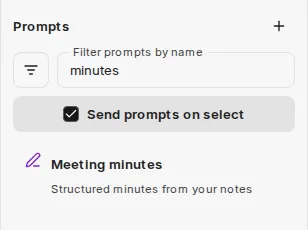
The Prompts area offers:
- a filter for All, My Prompts, Shared Prompts, or a category
- the Filter prompts by name search field
- the plus icon Create Prompt
- the Send prompts on select switch
When you select a prompt, it is inserted into the input field or, if sending on select is enabled, sent directly. If the / command is enabled, you can also call up prompts directly in the input field with /.
Creating a prompt
Section titled “Creating a prompt”Create Prompt opens a dialog. There you choose a Category, enter a Prompt Name, and enter the Text. Optionally, add a description and a custom command for calling the prompt via /; without a custom command, the prompt name is used. After creating the prompt, its detail page opens, where you can continue editing it.
Components of prompt templates
Section titled “Components of prompt templates”- Prompt Name: The name of the prompt, which is also displayed in the quick selection.
- Category: The category to which the prompt is assigned, for example Ideas, Learning, Writing.
- Text: The actual content of the prompt.
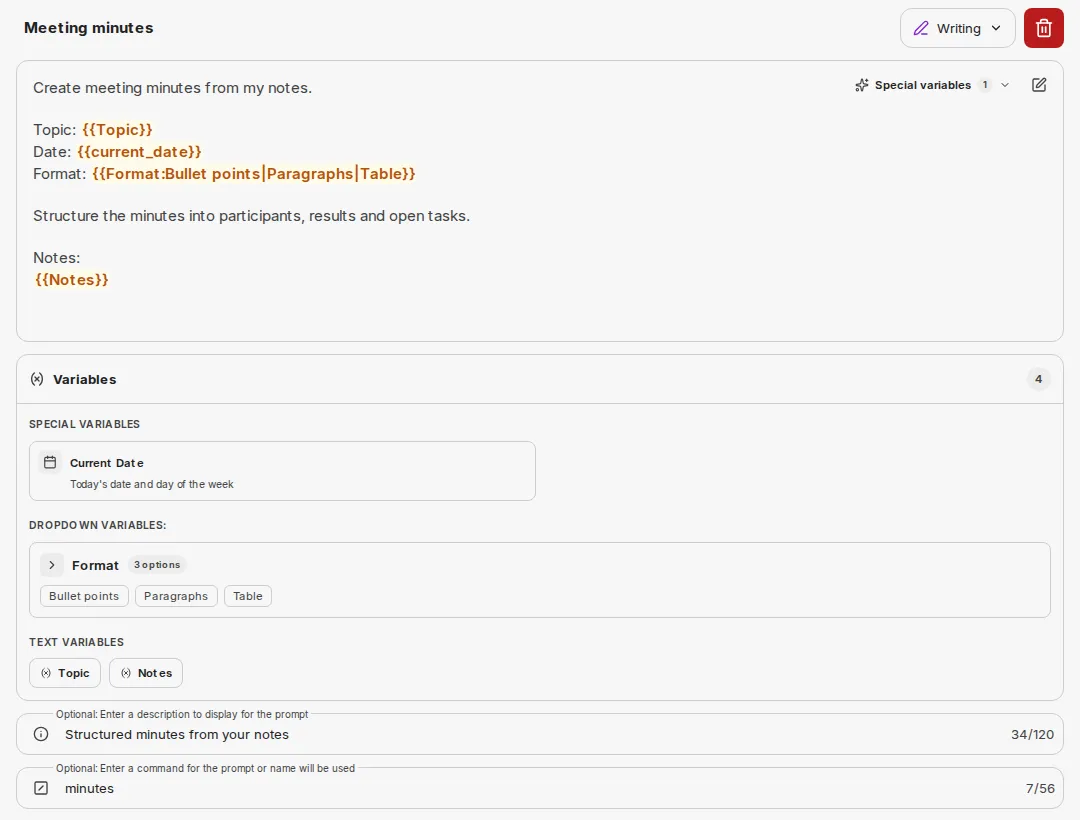
- Variables: Variables within the text that can be filled with appropriate content for execution.
- Description (optional): A short text displayed with the prompt.
- Command (optional): The command used to call the prompt via
/.
Variables
Section titled “Variables”- Special variables: These are predefined and filled automatically. Insert them via the special variables menu in the text field: Current Date (
{{current_date}}), Current User ({{current_user}}), UTC ISO Datetime ({{iso_datetime}}), and Current Date & Time ({{current_datetime}}). - Custom variables: Custom variables can be set within the text. These are marked with double curly brackets, e.g.,
{{ COLOR }}=> creates the variableCOLOR
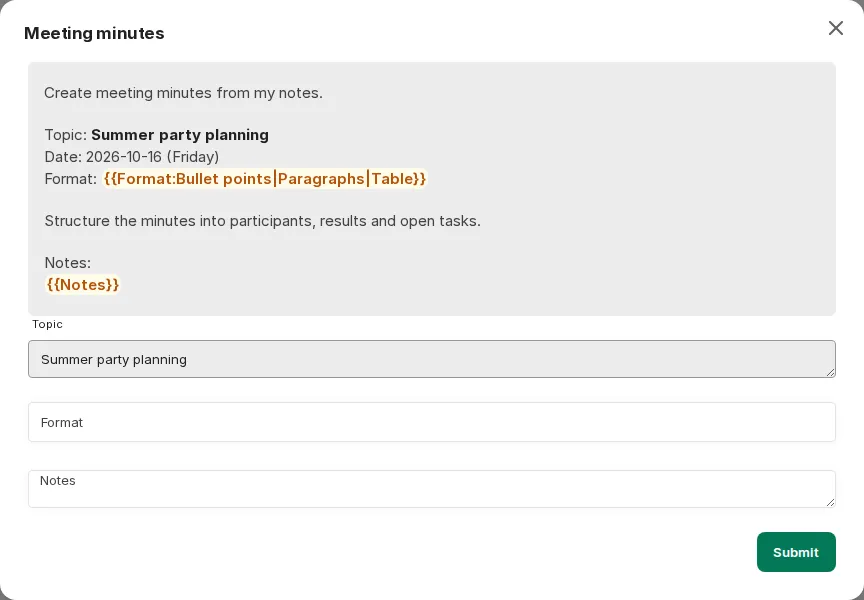
As soon as the prompt is executed, an input window for the variables opens. Submit applies the prompt with your input.
Dropdowns can also be selected as a selection menu for the variables. The following syntax is required for this:
{{variable_name:option1|option2|option3}}
# Example{{ color:red|green|blue}}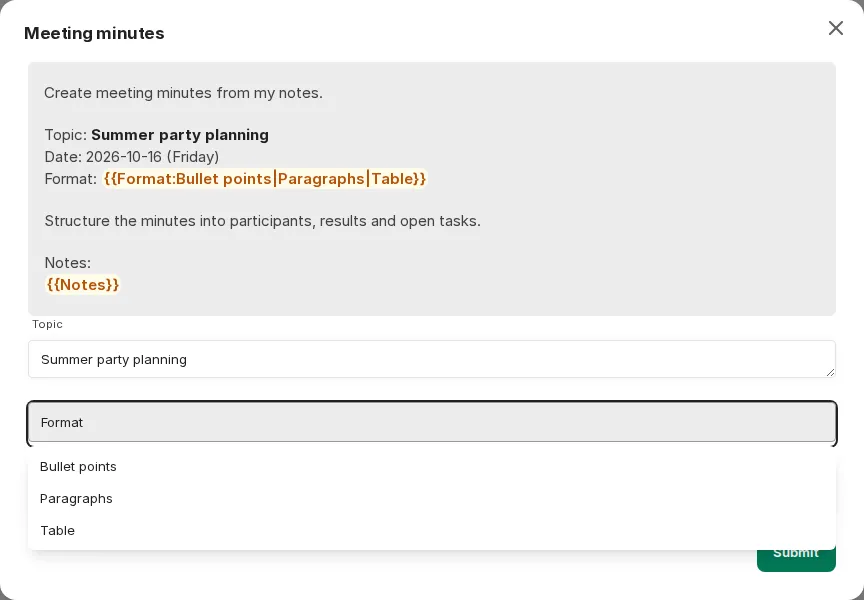
In such a dropdown, you can also enter your own value in addition to the predefined options.
Prompt templates can be used very effectively for recurring tasks, for prompt chaining, or in conjunction with agents.