
Settings
The settings can be accessed via the user menu in the lower left corner. The settings dialog is organized via the left-hand navigation into the areas General, Chat, Language, Data & Privacy, Account, and About.
General
Section titled “General”Appearance, layout, and accessibility are configured under General:
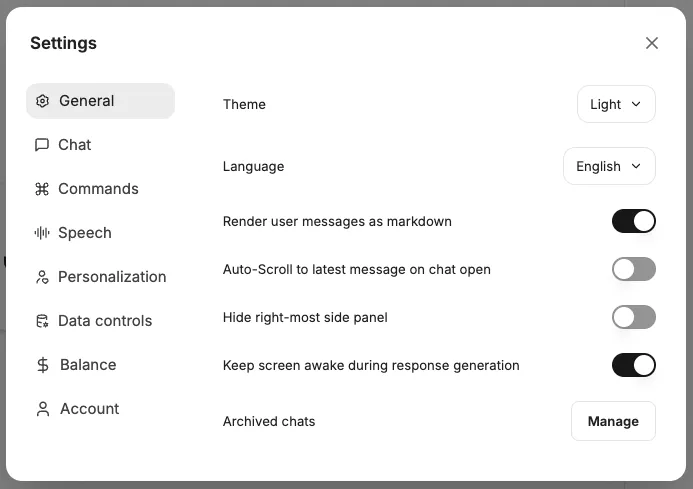
Appearance
Section titled “Appearance”Design
Section titled “Design”- Light
- Dark
- System
Display language
Section titled “Display language”Language in which the user interface is displayed.
Font size
Section titled “Font size”Select the font size in which chat messages should be displayed.
Chat direction
Section titled “Chat direction”ltr: Left to rightrtl: Right to left
Layout
Section titled “Layout”Maximise chat pane
Section titled “Maximise chat pane”The chat pane is expanded to full width.
Center chat input on the welcome screen
Section titled “Center chat input on the welcome screen”Chat input is centered or centered at the bottom on the welcome screen.
Scroll to bottom button
Section titled “Scroll to bottom button”Displays a button at the bottom of the chat area that allows you to quickly scroll to the end of the chat.
Accessibility
Section titled “Accessibility”Keep screen active during response generation
Section titled “Keep screen active during response generation”Prevents the screen from going into sleep mode whilst a response is being generated.
General chat settings
Section titled “General chat settings”Press Enter to send messages
Section titled “Press Enter to send messages”When enabled, Enter is sufficient to send messages. New lines can be added with Shift + Enter. When disabled, Ctrl / Cmd + Enter must be used to send messages, Enter then adds a new line.
Always show code when using the code interpreter
Section titled “Always show code when using the code interpreter”Code is displayed by default.
Save drafts locally
Section titled “Save drafts locally”When enabled, text and attachments entered into the chat form are automatically saved locally as drafts. These drafts are also available when the page is reloaded or when switching to another conversation. Drafts are stored locally on the device and are deleted once the message is sent.
Save badge status
Section titled “Save badge status”When enabled, the status of the chat badges is saved. This means that the badges remain in the same state as in the previous chat when you create a new chat. If this option is disabled, the badges are reset to their default state every time you create a new chat.
Commands
Section titled “Commands”Commands are shortcuts that can be executed in the message input field, allowing quick access to models, prompts, and multiple responses.
@ command for switching models
Section titled “@ command for switching models”Toggles the “@” command for switching endpoints, models, presets, etc.
Command + for multiple responses
Section titled “Command + for multiple responses”Toggles the “+” command to add a multiple response setting.
Command / for prompt template
Section titled “Command / for prompt template”Toggles the “/” command to select a prompt template via the keyboard.
Messages
Section titled “Messages”Display user messages as Markdown
Section titled “Display user messages as Markdown”Controls the display of user messages as Markdown. Markdown is a lightweight syntax for marking up text. AIs also respond in Markdown, and the content is displayed accordingly (e.g., bold). This setting controls whether user messages should also be displayed in this format.
Show usernames in messages
Section titled “Show usernames in messages”When enabled, the sender’s username will be displayed above each message that is sent. When disabled, “You” will be displayed above the messages.
Parse LaTeX in messages (may affect performance)
Section titled “Parse LaTeX in messages (may affect performance)”When enabled, LaTeX code in messages is rendered as mathematical equations. Disabling this may improve performance if LaTeX rendering is not required.
Open thought process dropdowns by default
Section titled “Open thought process dropdowns by default”When AI models are thinking, the thought process can be displayed by default or hidden behind a dropdown and opened when needed.
Auto-expand tool details
Section titled “Auto-expand tool details”Automatically expands the detail view of tool calls so that the executed steps are immediately visible.
Conversations
Section titled “Conversations”Switch to chat history on new chat
Section titled “Switch to chat history on new chat”Automatically switches to the chat history view when a new chat is created.
Automatically scroll to the latest message when the chat is opened
Section titled “Automatically scroll to the latest message when the chat is opened”This setting controls whether existing chats should automatically scroll to the bottom to the latest message when they are opened.
Allow changing endpoints mid-conversation
Section titled “Allow changing endpoints mid-conversation”Allows the user to change the endpoint mid-conversation. This can be useful if, for example, you realise that a different model is better suited to the current task.
Temporary chat by default
Section titled “Temporary chat by default”When enabled, new chats start in temporary mode by default. Temporary chats are not saved in the history.
Use default branching option
Section titled “Use default branching option”Uses the default branching option when a new chat is created. This option can be configured in the AI settings.
Start branching from the target message by default
Section titled “Start branching from the target message by default”When enabled, branching starts from the target message and goes back to the last message in the conversation, in accordance with the selected behaviour.
Prompts
Section titled “Prompts”Advanced prompt editor
Section titled “Advanced prompt editor”Enables an advanced editor for creating and editing prompts with additional features.
Always apply new prompt versions to production
Section titled “Always apply new prompt versions to production”New versions of a prompt are automatically adopted as the production version, without having to be released manually.
Automatically send prompts when selected
Section titled “Automatically send prompts when selected”When enabled, a prompt is sent directly when selected, instead of first being inserted into the input field.
Language
Section titled “Language”Both speech-to-text (STT) and text-to-speech (TTS) are available in CompanyGPT. Both can be used via the integrated browser engine as well as via LLMs (the LLMs must be configured accordingly).
Conversation mode
Section titled “Conversation mode”Conversation mode enables automatic audio transcription and allows you to set the decibel sensitivity
Speech-to-text
Section titled “Speech-to-text”Can be used to dictate prompt inputs instead of typing.
Engines:
External: LLMBrowser: Engine of the current browser
Language: The language of the input
Automatically transcribe audio
Automatically send text
Delay
Text to Speech
Section titled “Text to Speech”Can be used to have messages read aloud.
Automatic playback of the latest message
Engines:
External: LLMBrowser: Engine of the current browser
Voice: Available voices, either from the browser engine or AI
Use cloud-based voices
Audio playback speed
Enable TTS caching
Data & Privacy
Section titled “Data & Privacy”Use saved memories
Section titled “Use saved memories”Allow the AI to access and use your saved memories when responding.
Import conversations
Section titled “Import conversations”Conversations can be imported from an exported JSON file, for example, to share them with colleagues.
Shared links
Section titled “Shared links”View conversations shared via links. The links can be accessed again, the source chats can be opened, or the shared links can be deleted.
Agent API Keys
Section titled “Agent API Keys”View the API keys assigned to agents. These can be created and revoked here.
User API keys
Section titled “User API keys”If AI API keys have been assigned at the user level, they can be revoked here.
TTS cache memory
Section titled “TTS cache memory”The TTS cache memory can be cleared if it is used.
Delete all chats
Section titled “Delete all chats”Delete all chats.
Account
Section titled “Account”Profile
Section titled “Profile”Profile picture
Section titled “Profile picture”Change the profile picture via Change image.
Billing
Section titled “Billing”Balance
Section titled “Balance”Overview of the current balance.
Automatic top-up settings
Section titled “Automatic top-up settings”Shows when the balance was last topped up, the top-up amount, the interval, and the time of the next automatic top-up.
Danger zone
Section titled “Danger zone”Delete account
Section titled “Delete account”Delete the user account.
Version information
Section titled “Version information”Shows information about the installed version: Version, Commit, Branch, and Built (build date). Via Copy diagnostics, these details can be copied so that maintainers can identify the specific build.