
Settings
Open the settings via the account menu at the bottom left under Settings, or press Ctrl + Shift + , (macOS: ⌘ + ⇧ + ,). The settings dialog is organized via the left-hand navigation into the areas General, Chat, Speech, Data & Privacy, Account, and About. Use the Search settings field to find a setting directly.
Which settings are shown depends on the configuration of your environment and your permissions. In the German interface, some newer options are currently still shown with English labels.
General
Section titled “General”Appearance, layout, notifications, and accessibility are configured under General:
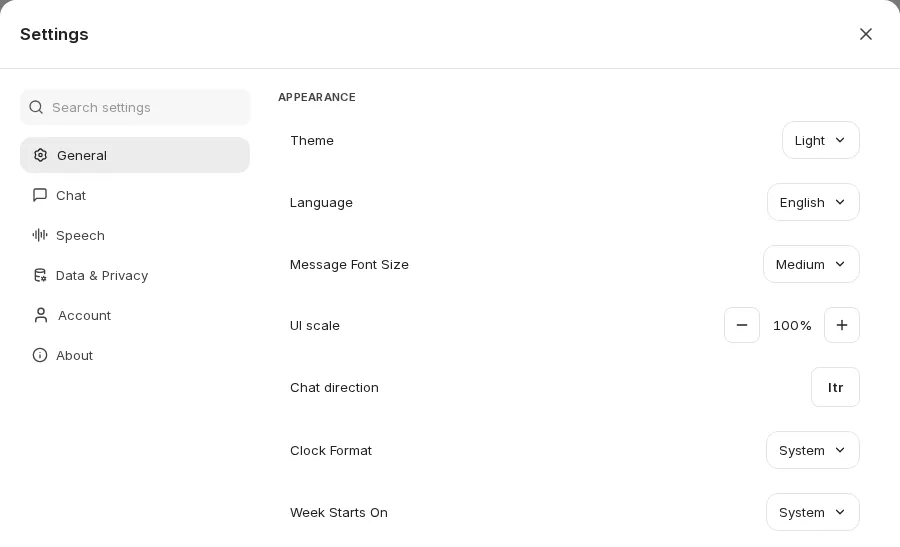
Appearance
Section titled “Appearance”- Light
- Dark
- System
In addition, there are the high-contrast variants High contrast light and High contrast dark.
Language
Section titled “Language”Language in which the user interface is displayed.
Message Font Size
Section titled “Message Font Size”Select the font size in which chat messages should be displayed.
UI scale
Section titled “UI scale”Scales the entire interface. The current size is shown as a percentage; use the minus and plus buttons to make it smaller or larger.
Chat direction
Section titled “Chat direction”ltr: Left to rightrtl: Right to left
Clock Format
Section titled “Clock Format”Sets whether times are shown in 12-hour or 24-hour format or follow your System setting.
Week Starts On
Section titled “Week Starts On”Sets whether the week starts on Monday or Sunday or follows your System setting.
Layout
Section titled “Layout”Maximize chat space
Section titled “Maximize chat space”The chat pane is expanded to full width.
Center Chat Input on Welcome Screen
Section titled “Center Chat Input on Welcome Screen”Chat input is centered or centered at the bottom on the welcome screen.
Scroll to the end button
Section titled “Scroll to the end button”Displays a button at the bottom of the chat area that allows you to quickly scroll to the end of the chat.
Show chat beside the sidebar on mobile
Section titled “Show chat beside the sidebar on mobile”On mobile devices, the open sidebar stops short of the edge so that a strip of the conversation stays visible. Tapping the strip closes the sidebar.
Display chat title in tab
Section titled “Display chat title in tab”Shows the title of the open chat in the browser tab title.
Notifications
Section titled “Notifications”Show unread count in the tab title
Section titled “Show unread count in the tab title”Shows the number of chats with unread replies in the title and icon of the browser tab.
Notify me when a reply arrives
Section titled “Notify me when a reply arrives”Shows a desktop notification when a reply arrives while you are away from CompanyGPT. Your browser asks for permission the first time you turn this on. No notifications are shown while you are looking at CompanyGPT.
Play a sound for new replies
Section titled “Play a sound for new replies”Plays a short sound when a reply arrives while you are away from CompanyGPT. Browsers only play sounds after you have interacted with the page.
Accessibility
Section titled “Accessibility”Keep screen awake during response generation
Section titled “Keep screen awake during response generation”Prevents the screen from going into sleep mode whilst a response is being generated.
Sending
Section titled “Sending”Press Enter to send messages
Section titled “Press Enter to send messages”When enabled, Enter is sufficient to send messages. New lines can be added with Shift + Enter. When disabled, Ctrl + Enter (macOS: ⌘ + Enter) must be used to send messages, Enter then adds a new line. The option is disabled by default. If you have already set it yourself, your choice is kept.
While generating, Enter will
Section titled “While generating, Enter will”Sets what Enter does while a response is still being generated:
- Steer: your message is included in the running response.
- Interrupt: the running response is stopped right away. The part of the response generated so far is kept, and the response continues with your message.
- Queue: your message is sent as a new message once the current response has finished.
The send button also lets you choose for individual messages, see Chat.
Save drafts locally
Section titled “Save drafts locally”When enabled, text and attachments entered into the chat form are automatically saved locally as drafts. These drafts are also available when the page is reloaded or when switching to another conversation. Drafts are stored locally on the device and are deleted once the message is sent.
Resize images before upload
Section titled “Resize images before upload”When enabled, large images are downscaled in your browser before they are uploaded. This speeds up uploads. Images that are already within the size limits are sent unchanged. Enabled by default.
Paste long text as a file
Section titled “Paste long text as a file”When enabled, pasting very long text attaches it as a text file instead of filling the message box. The limits of file processing apply.
Save badges state
Section titled “Save badges state”When enabled, the status of the chat badges is saved. This means that the badges remain in the same state as in the previous chat when you create a new chat. If this option is disabled, the badges are reset to their default state every time you create a new chat.
Commands
Section titled “Commands”Commands are shortcuts that can be executed in the message input field, allowing quick access to models, prompts, and multiple responses.
@ command for switching models
Section titled “@ command for switching models”Toggles the @ command for switching endpoints, models, presets, etc.
Command + for multiple responses
Section titled “Command + for multiple responses”Toggles the + command to add a multiple response setting.
Command / for prompt template
Section titled “Command / for prompt template”Toggles the / command to select a prompt template via the keyboard.
Messages
Section titled “Messages”Render user messages as markdown
Section titled “Render user messages as markdown”Controls the display of user messages as Markdown. Markdown is a lightweight syntax for marking up text. AIs also respond in Markdown, and the content is displayed accordingly (e.g., bold). This setting controls whether user messages should also be displayed in this format.
Collapse long user messages
Section titled “Collapse long user messages”When enabled, long messages from you are shown collapsed as a preview with an option to show more. This keeps pasted text or code from dominating the conversation. The full text remains available to copy or search. Enabled by default.
Display username in messages
Section titled “Display username in messages”When enabled, the sender’s username will be displayed above each message that is sent. When disabled, “You” will be displayed above the messages.
Parsing LaTeX in messages (may affect performance)
Section titled “Parsing LaTeX in messages (may affect performance)”When enabled, LaTeX code in messages is rendered as mathematical equations. Disabling this may improve performance if LaTeX rendering is not required.
Open Thinking Dropdowns by Default
Section titled “Open Thinking Dropdowns by Default”When AI models are thinking, the thought process can be displayed by default or hidden behind a dropdown and opened when needed.
Smooth streaming text (fade in new words)
Section titled “Smooth streaming text (fade in new words)”When enabled, newly streamed words fade in smoothly in the latest response. This is purely visual and does not delay the output. It is disabled automatically when your device is set to reduce motion.
Copy messages as rich text
Section titled “Copy messages as rich text”When enabled, copying a message also places a formatted version on the clipboard. Headings, lists, tables, and code keep their formatting when you paste them into applications that do not support Markdown, such as Teams, Outlook, or Word.
Auto-expand tool details
Section titled “Auto-expand tool details”Automatically expands the detail view of tool calls so that the executed steps are immediately visible.
Conversations
Section titled “Conversations”Switch to Chat History on new chat
Section titled “Switch to Chat History on new chat”Automatically switches to the chat history view when a new chat is created.
Auto-Scroll to latest message on chat open
Section titled “Auto-Scroll to latest message on chat open”This setting controls whether existing chats should automatically scroll to the bottom to the latest message when they are opened.
Enable switching Endpoints mid-conversation
Section titled “Enable switching Endpoints mid-conversation”Allows the user to change the endpoint mid-conversation. This can be useful if, for example, you realise that a different model is better suited to the current task.
Temporary Chat by default
Section titled “Temporary Chat by default”When enabled, new chats start in temporary mode by default. Temporary chats are not saved in the history.
Use default fork option
Section titled “Use default fork option”When enabled, forking a chat always uses the same option. Choose it below under Default fork option: Visible messages only, Include related branches, or Include all to/from here.
Start fork from target message by default
Section titled “Start fork from target message by default”When enabled, forking starts from the target message and goes to the last message in the conversation, in accordance with the selected behaviour.
Prompts
Section titled “Prompts”Advanced prompts editor
Section titled “Advanced prompts editor”Enables versioning and production control for prompts.
Always make new prompt versions production
Section titled “Always make new prompt versions production”New versions of a prompt are automatically adopted as the production version, without having to be released manually.
Send prompts on select
Section titled “Send prompts on select”When enabled, a prompt is sent directly when selected, instead of first being inserted into the input field.
Speech
Section titled “Speech”Both speech-to-text (STT) and text-to-speech (TTS) are available in CompanyGPT. Both can be used via the integrated browser engine as well as via an external speech service (the service must be set up in your environment).
Speech to text
Section titled “Speech to text”Can be used to dictate prompt inputs instead of typing.
- Speech to Text: turns the feature on or off.
- Engine: External (speech service of your environment) or Browser (engine of the current browser).
- Language: the language of the input.
- Auto transcribe audio
- Decibel sensitivity
- Auto send text with Delay (s)
Text to speech
Section titled “Text to speech”Can be used to have messages read aloud.
- Text to Speech: turns the feature on or off.
- Engine: External (speech service of your environment) or Browser (engine of the current browser).
- Voice: available voices of the selected engine.
- Conversation Mode: turns on automatic audio transcription. Speech to text and text to speech must both be enabled.
- Autoplay Latest Message
- Use cloud-based voices (only with the Browser engine)
- Audio Playback Rate
- Enable cache TTS
Data & Privacy
Section titled “Data & Privacy”Memory
Section titled “Memory”Reference saved memories
Section titled “Reference saved memories”Allows the AI to access and use your saved memories when responding.
Your data
Section titled “Your data”Import conversations
Section titled “Import conversations”Use Import to import conversations from an exported JSON file, for example, to share them with colleagues.
Shared chats
Section titled “Shared chats”Manage opens an overview of the chats you have shared via links. From there, you can open the source chat or delete shared links, including several at once.
Manage Files
Section titled “Manage Files”Manage opens an overview of your uploaded files.
Archive all chats
Section titled “Archive all chats”Moves all chats to the archive. They disappear from your chat list and remain available under Archived chats.
API keys
Section titled “API keys”Agent API Keys
Section titled “Agent API Keys”If you are allowed to use the Agents API, you can create and revoke API keys for agents here.
Revoke all provider API keys
Section titled “Revoke all provider API keys”If you have stored your own API keys for an AI provider, you can revoke them here with Revoke.
Danger zone
Section titled “Danger zone”Delete TTS cache storage
Section titled “Delete TTS cache storage”Text-to-speech audio is stored in your browser so that replaying a message does not request it again. Here you can clear this storage.
Delete all chats
Section titled “Delete all chats”Delete all chats.
Account
Section titled “Account”Profile
Section titled “Profile”Profile Picture
Section titled “Profile Picture”Change the profile picture via Change picture.
Billing
Section titled “Billing”Balance
Section titled “Balance”Overview of the current balance. The share already used is also shown in the context indicator in the chat.
Auto-Refill Settings
Section titled “Auto-Refill Settings”Shows when the balance was last topped up, the top-up amount, the interval, and the time of the next automatic top-up.
Danger zone
Section titled “Danger zone”Delete account
Section titled “Delete account”Delete the user account.
Version information
Section titled “Version information”Shows information about the installed version: Version, Commit, Branch, and Built (build date). Via Copy diagnostics, these details can be copied so that innFactory support can identify the specific build.