Skills
Skills are reusable instructions that specialize the AI assistant for specific tasks. They extend the assistant’s capabilities without requiring you to rewrite complex prompts every time.
Skills overview
Section titled “Skills overview”Skills are managed in the left sidebar under Skills. Under My Skills, you can see all your skills at a glance.
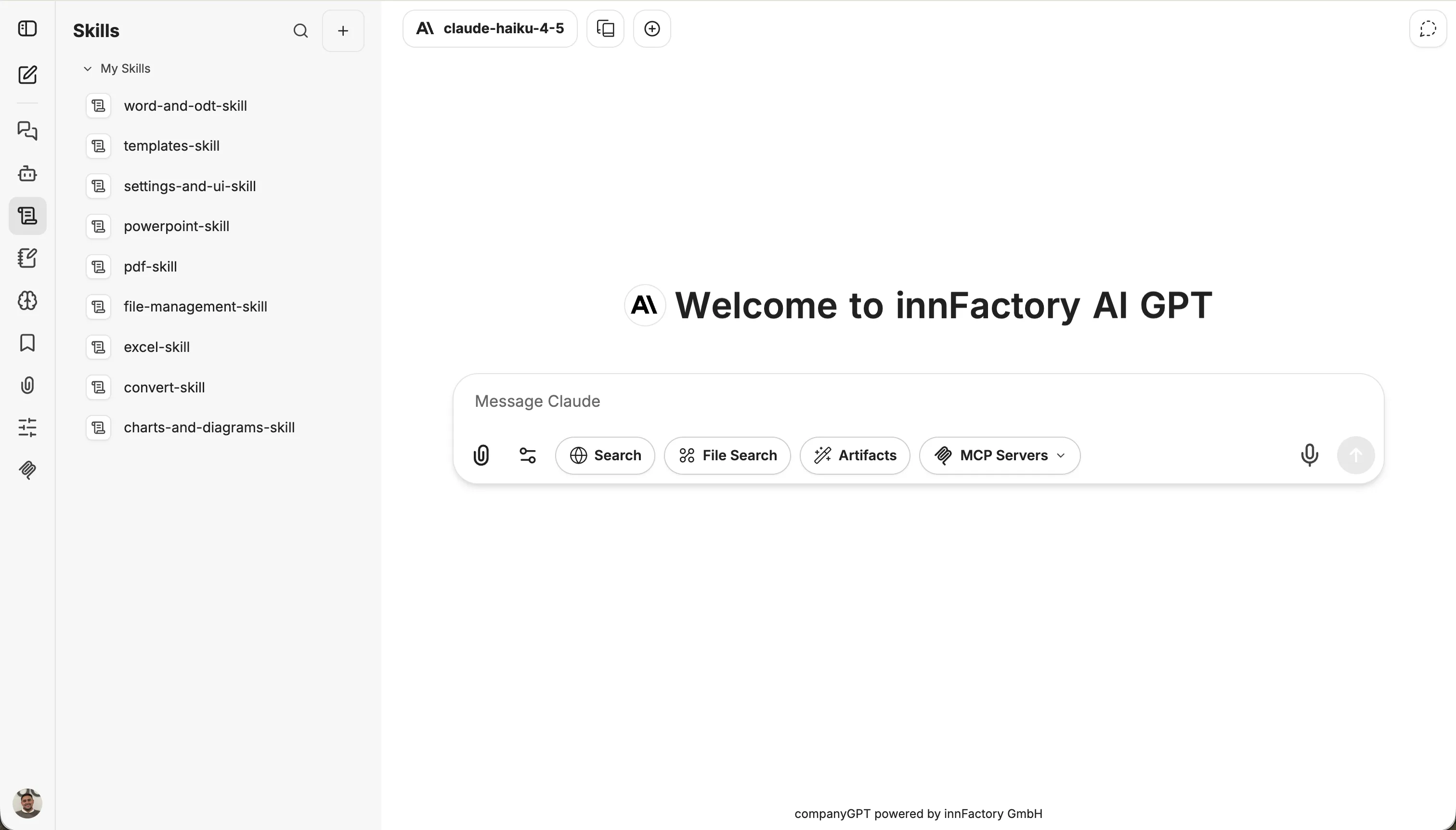
Creating a skill
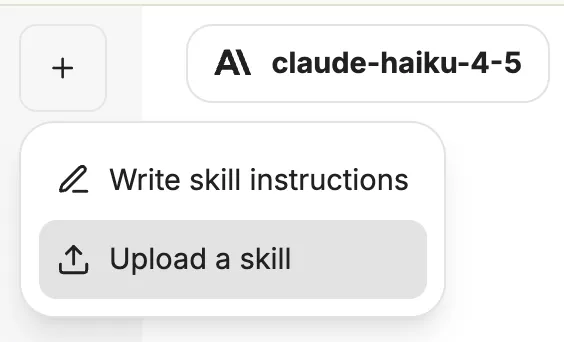
Section titled “Creating a skill”Click the + button at the top of the Skills sidebar to create a new skill. A dropdown menu appears with two options.
Write skill instructions
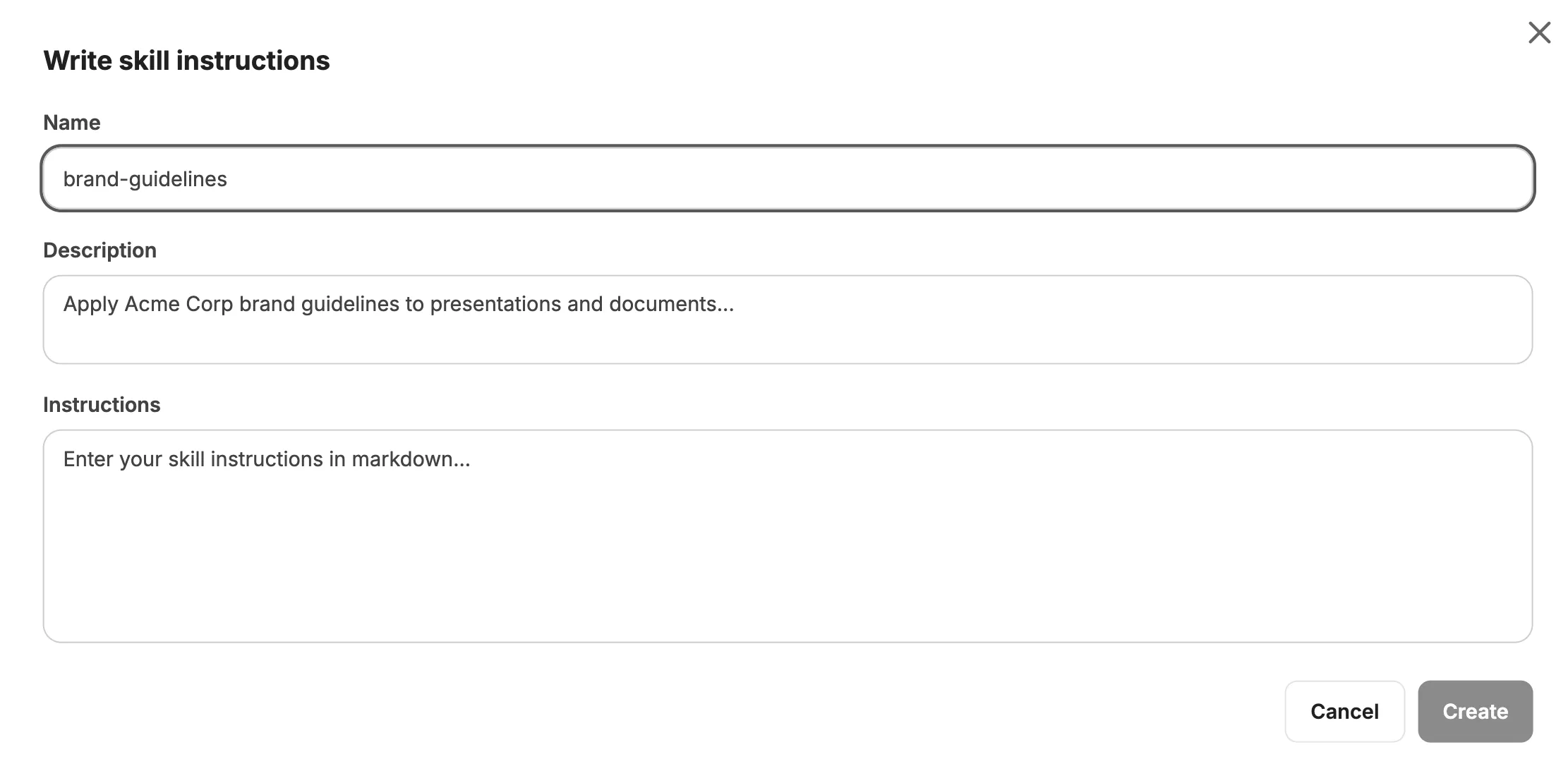
Section titled “Write skill instructions”Select Write skill instructions to create a skill yourself. You need to fill in the following fields:
- Name – A unique name for the skill
- Description – A short explanation of when and what the skill is used for
- Instructions – The actual instructions in Markdown format
Upload a skill
Section titled “Upload a skill”Select Upload a skill to upload an existing skill file via drag & drop or click.
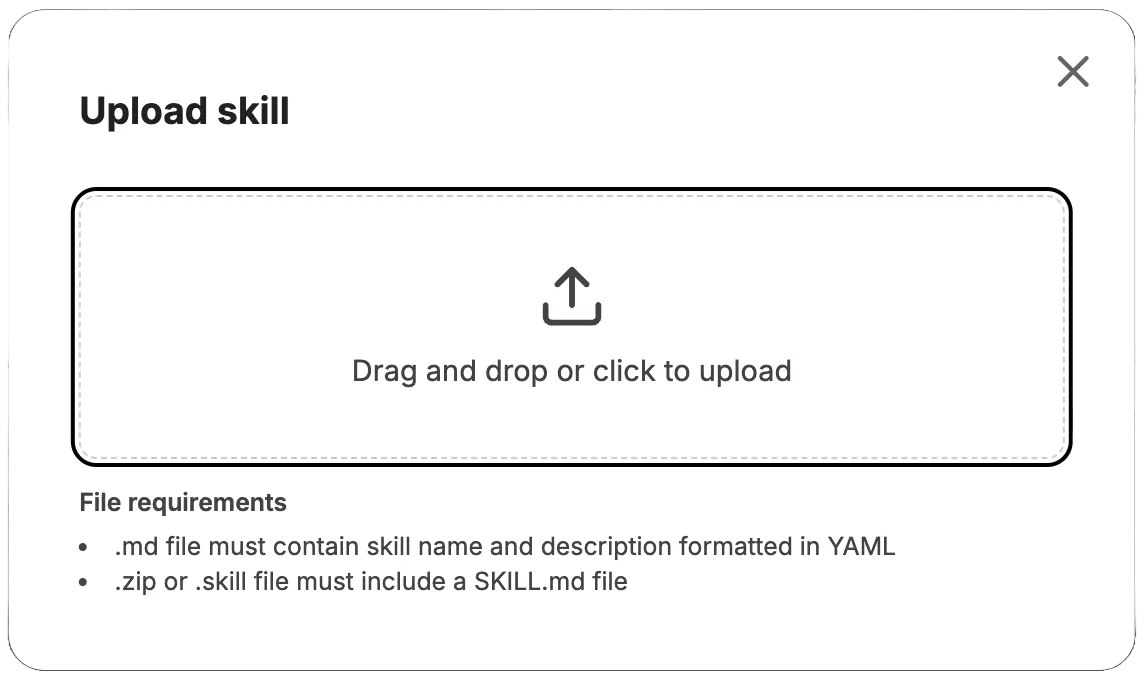
The following file formats are supported:
| Format | Requirements |
|---|---|
.md | Must contain skill name and description in YAML |
.zip / .skill | Must include a SKILL.md file |
Skill view
Section titled “Skill view”The detail view of a skill shows the rendered content with description and Markdown content, for example tool tables or decision guides.
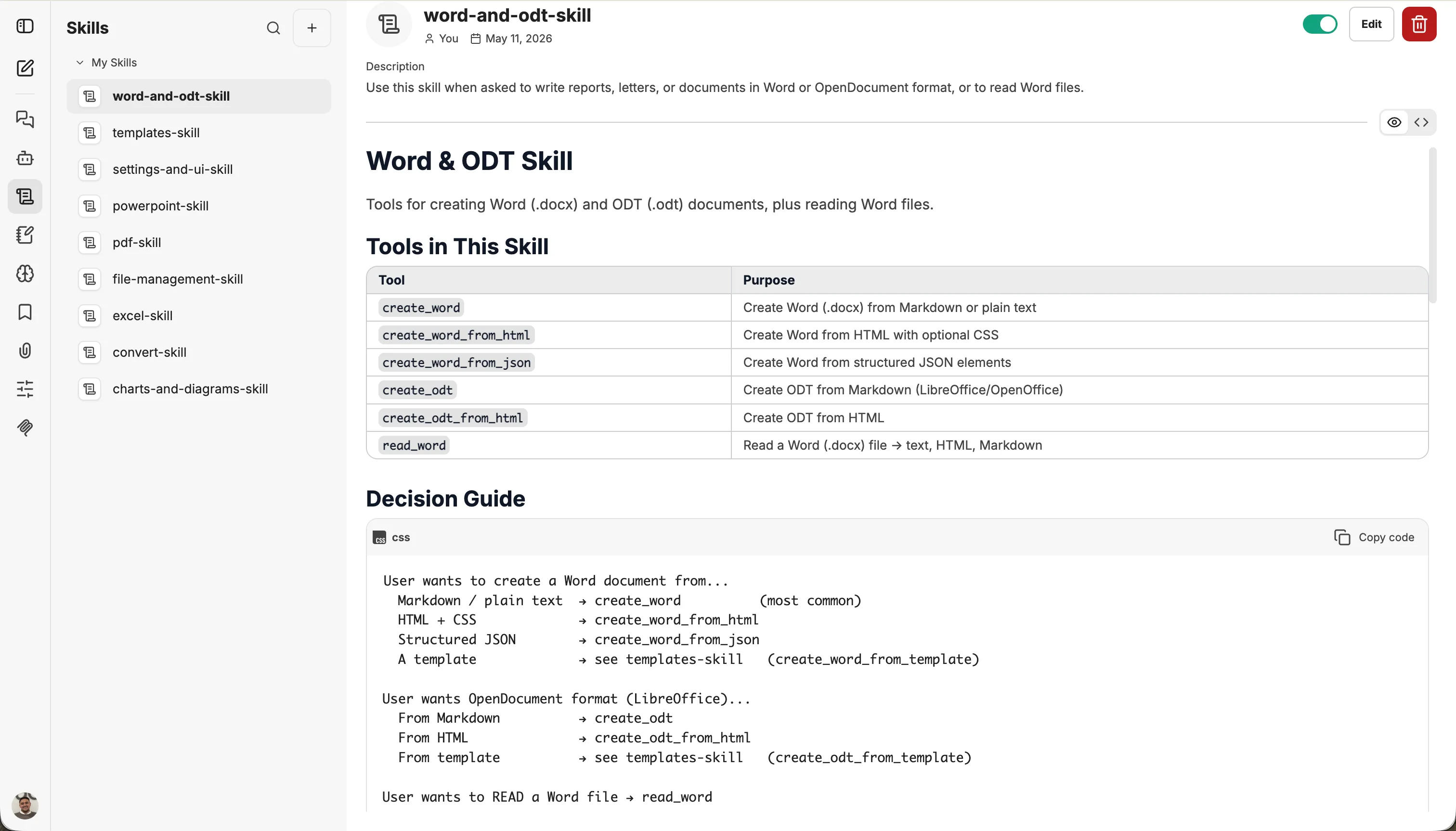
From here, you can:
- Enable or disable – using the toggle in the top-right corner
- Edit – adjust instructions, name, or category
- Delete – remove the skill permanently
Editing a skill
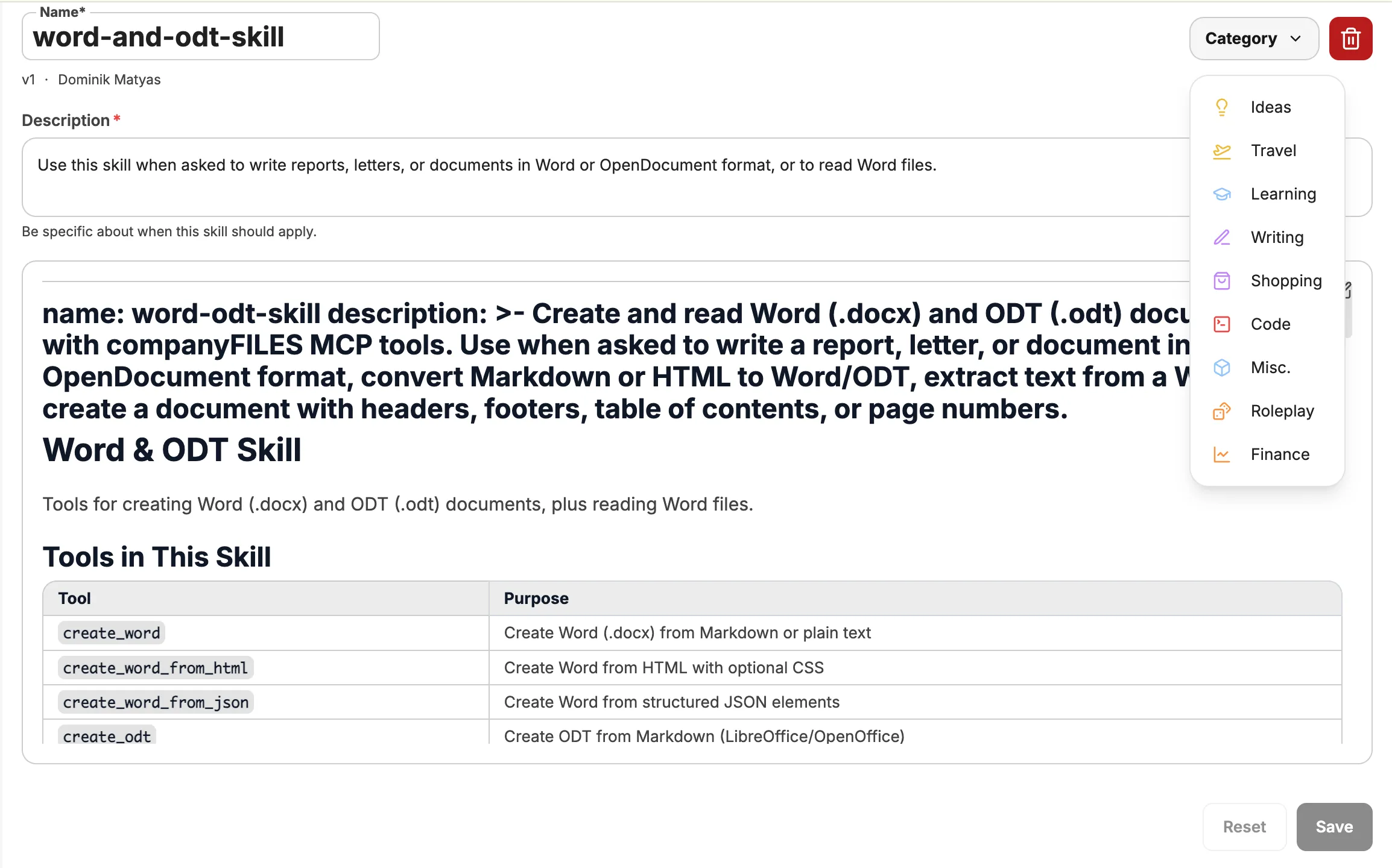
Section titled “Editing a skill”Open a skill and click Edit to adjust name, description, instructions, and category.
Adding skills to agents
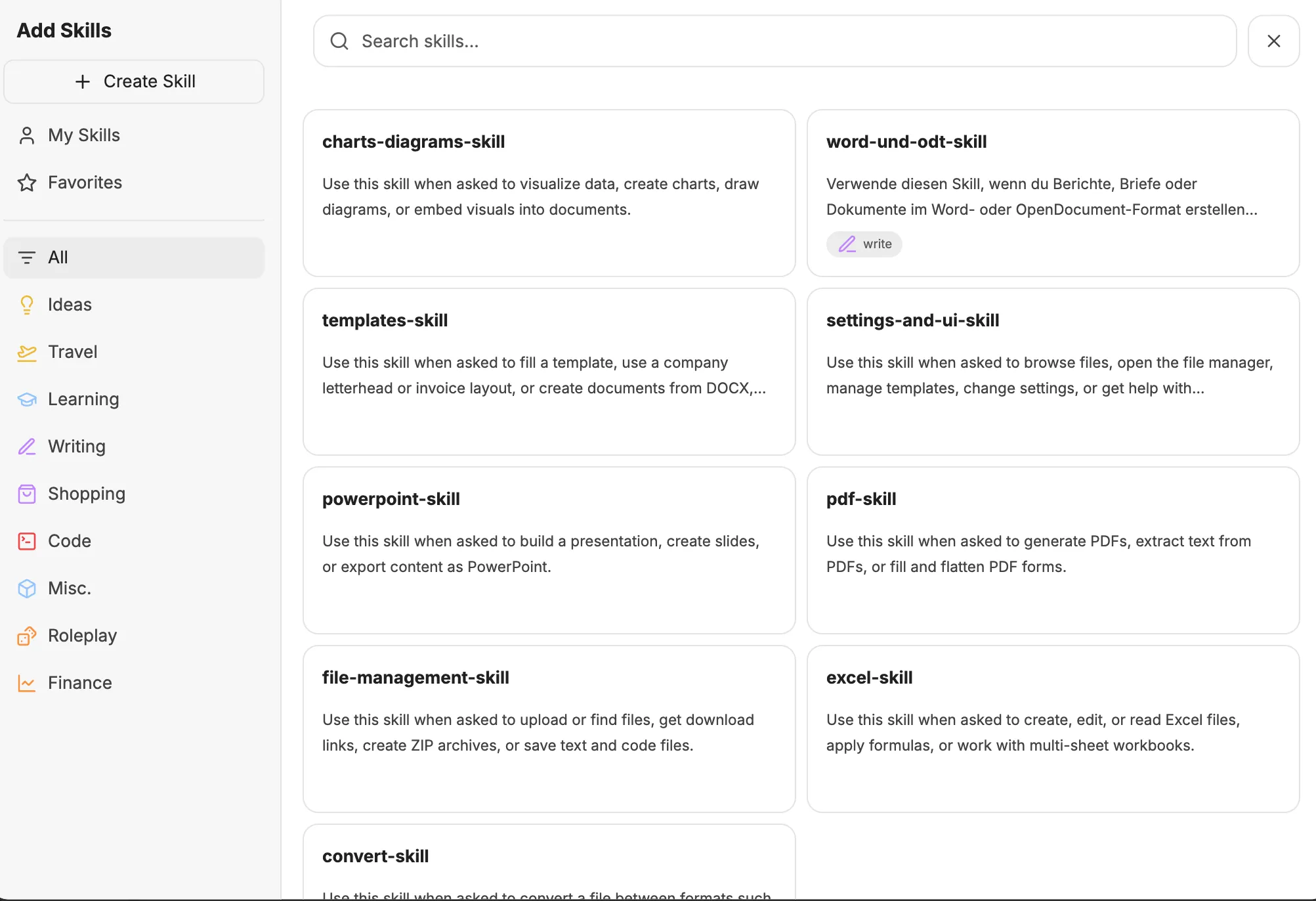
Section titled “Adding skills to agents”Skills can also be assigned directly to an agent. Open the agent settings and enable the Skills toggle. By default, the agent has access to the full skill catalog.
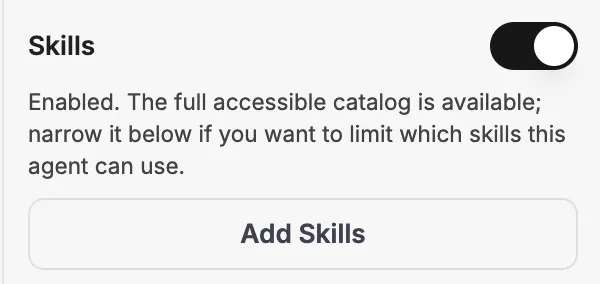
Click Add Skills to select specific skills that the agent is allowed to use. This lets you precisely control an agent’s capabilities.