
Addon companyFILES
companyFILES is the document workspace for CompanyGPT. You can create, upload, organize, convert, and manage files in one interface, including templates, charts, and document settings.
The companyFILES Interface
Section titled “The companyFILES Interface”
The sidebar gives you direct access to all core functions:
- Back to Chat – Returns to the CompanyGPT Chat
- Back to Tools – Returns to the overview of available tools
- Documents – Shows all generated and uploaded documents
- Templates – Shows all available templates
- Upload Template – Upload a new template
- Upload – Upload files
- Visualizations – Shows all created diagrams and charts
- Settings – Document settings that are automatically applied
- Language – Change interface language
- Toggle Design – Toggle Dark/Light mode
- Account – Account management
Documents
Section titled “Documents”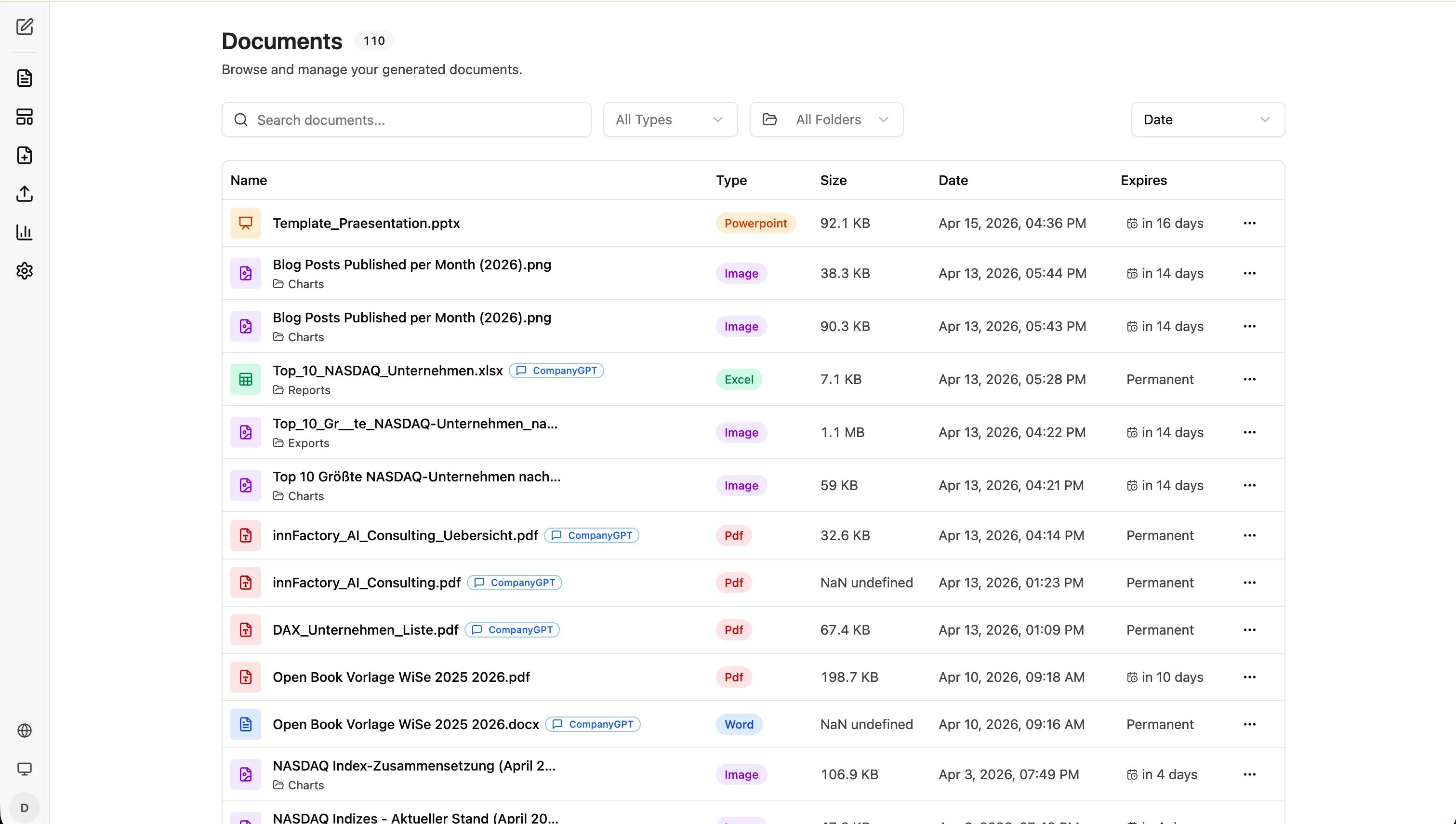
Here you can browse and manage all generated and uploaded files. Use the search bar and the filters All Types and All Folders to find files quickly. Files with a CompanyGPT badge were generated directly from the chat. The three-dot menu (⋯) lets you download, preview, edit the expiration date, or delete documents. Documents can be organized into folders and have a configurable expiration date.
Templates
Section titled “Templates”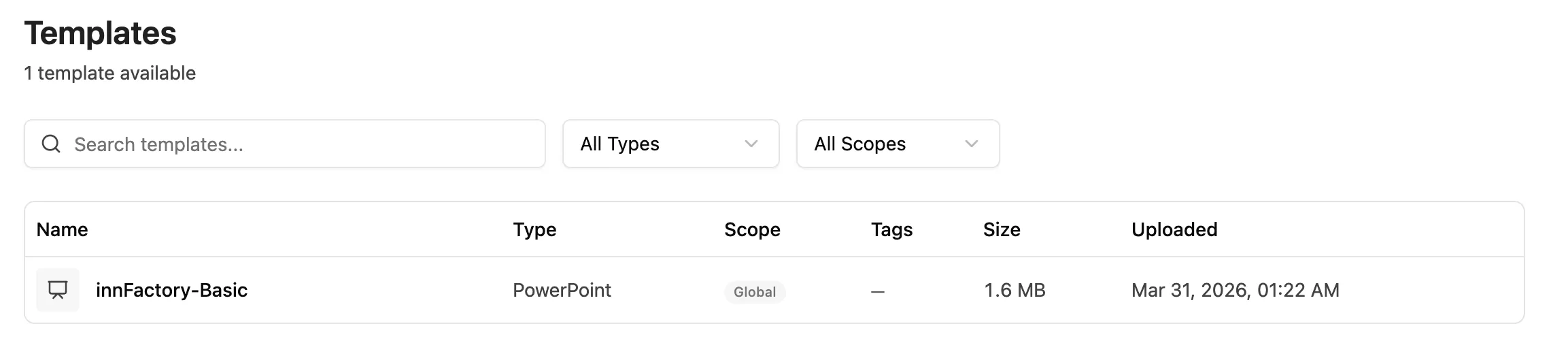
Here you can see all available templates for document generation. Templates can be filtered by Type and Scope (e.g. Global or personal). Available templates can be used directly in the chat for document generation.
Upload Template
Section titled “Upload Template”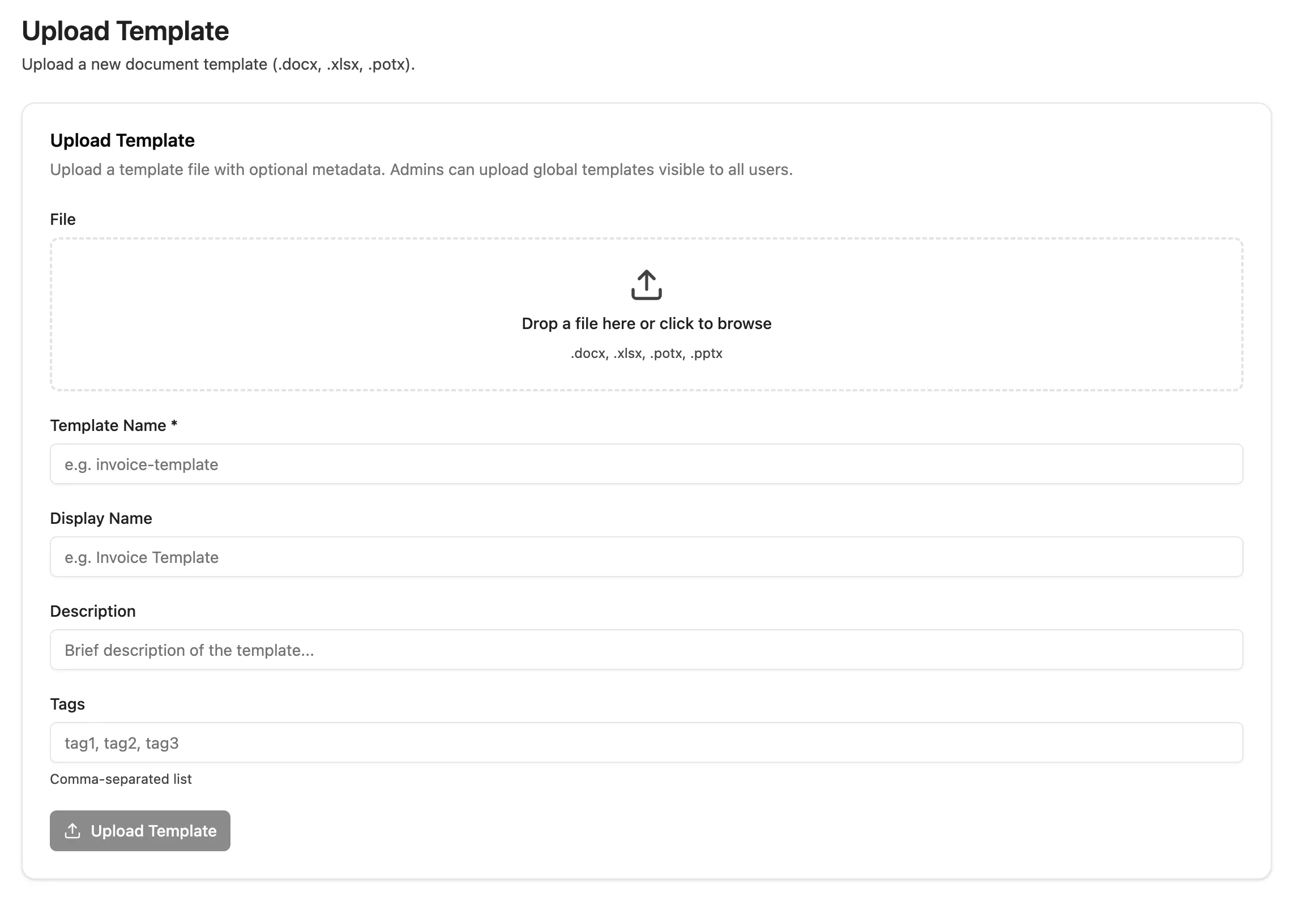
Drag and drop a template file (.docx, .xlsx, .potx, .pptx) into the upload area. Fill in the Template Name (required) and optionally Display Name, Description, and Tags. Admins can upload global templates visible to all users. Click “Upload Template” to complete the upload.
Upload
Section titled “Upload”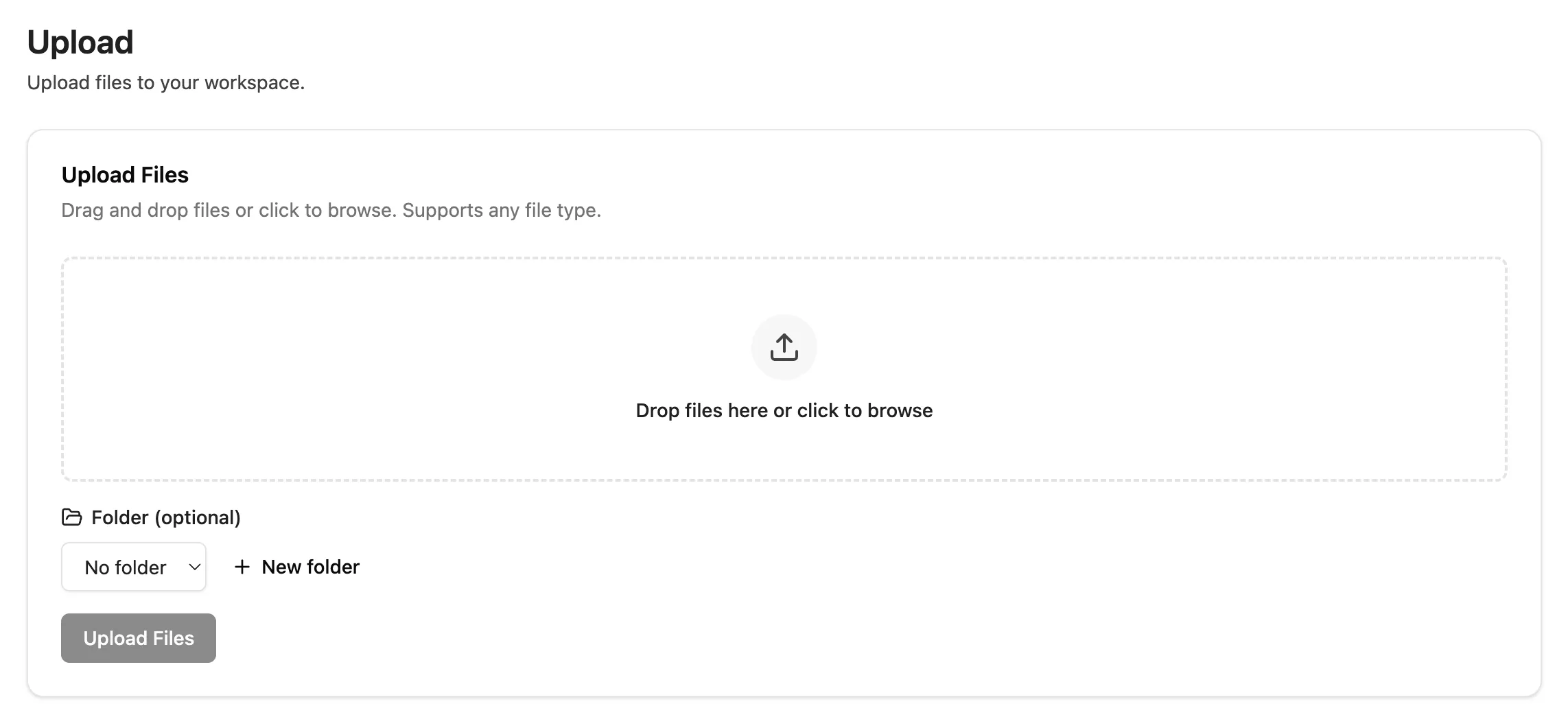
Drag and drop files into the upload area or click to browse. All file types are supported. Optionally select a Folder or create a new one via ”+ New folder”. Click “Upload Files” to start the upload.
Visualizations
Section titled “Visualizations”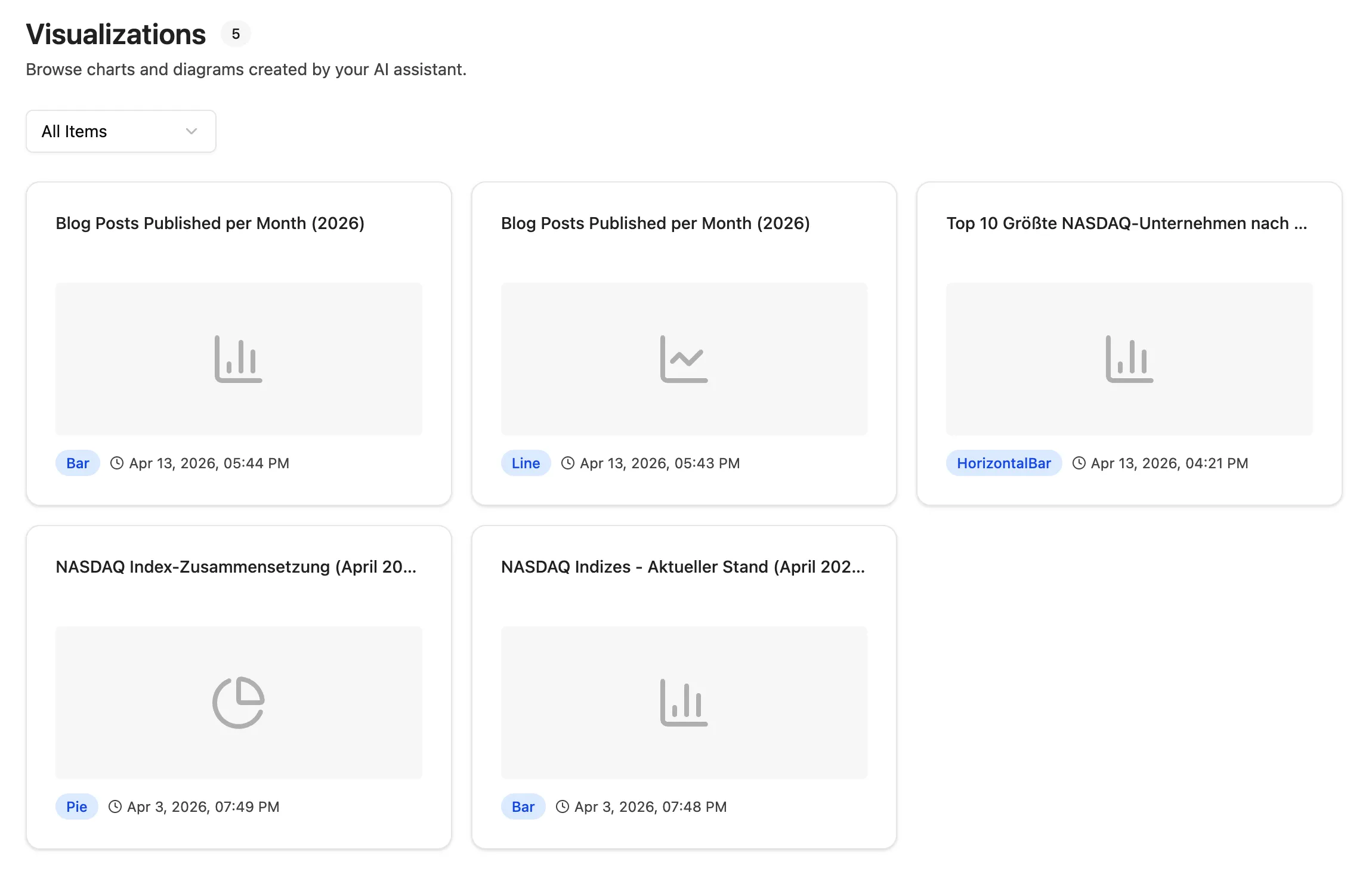
All charts and diagrams created in the chat are collected here. Use the “All Items” filter to filter by chart type (e.g. diagrams or charts). Each card shows the title, a preview, the type, and the creation date.
Settings
Section titled “Settings”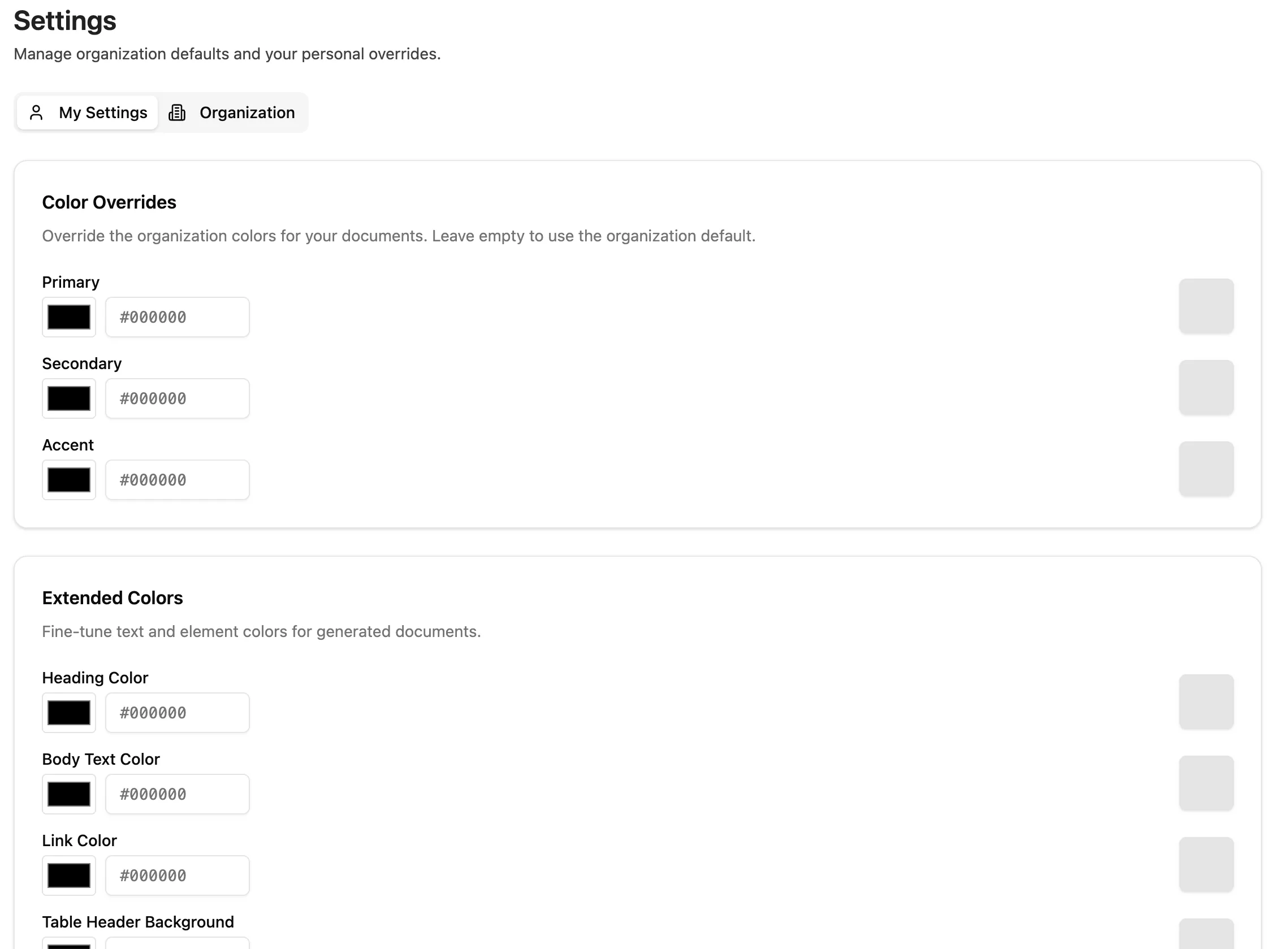
Use the My Settings and Organization tabs to define color values that are automatically applied to all generated documents. Under Color Overrides, adjust Primary, Secondary, and Accent colors. Under Extended Colors, control Heading, Body Text, Link, and Table Header colors. You can also set a company logo that will be used in generated documents. Leave fields empty to use the organization default.
Creating Documents with CompanyGPT
Section titled “Creating Documents with CompanyGPT”Now that you know the interface, the next sections cover what you can create with companyFILES in CompanyGPT and how to use templates, conversions, visualizations, and file organization in practice.
Comprehensive document creation
Section titled “Comprehensive document creation”Native Word (.docx), Excel (.xlsx), PowerPoint (.pptx) and PDF files can be created.
- Excel: Tables can be generated from CSV, JSON and arrays or advanced templates including formulas can be used.
- Word: Markdown, HTML, JSON or templates are seamlessly converted into finished documents.
- PowerPoint: Presentations can be created directly from Markdown texts or templates.
- PDF: PDFs can be generated directly from Markdown or HTML.
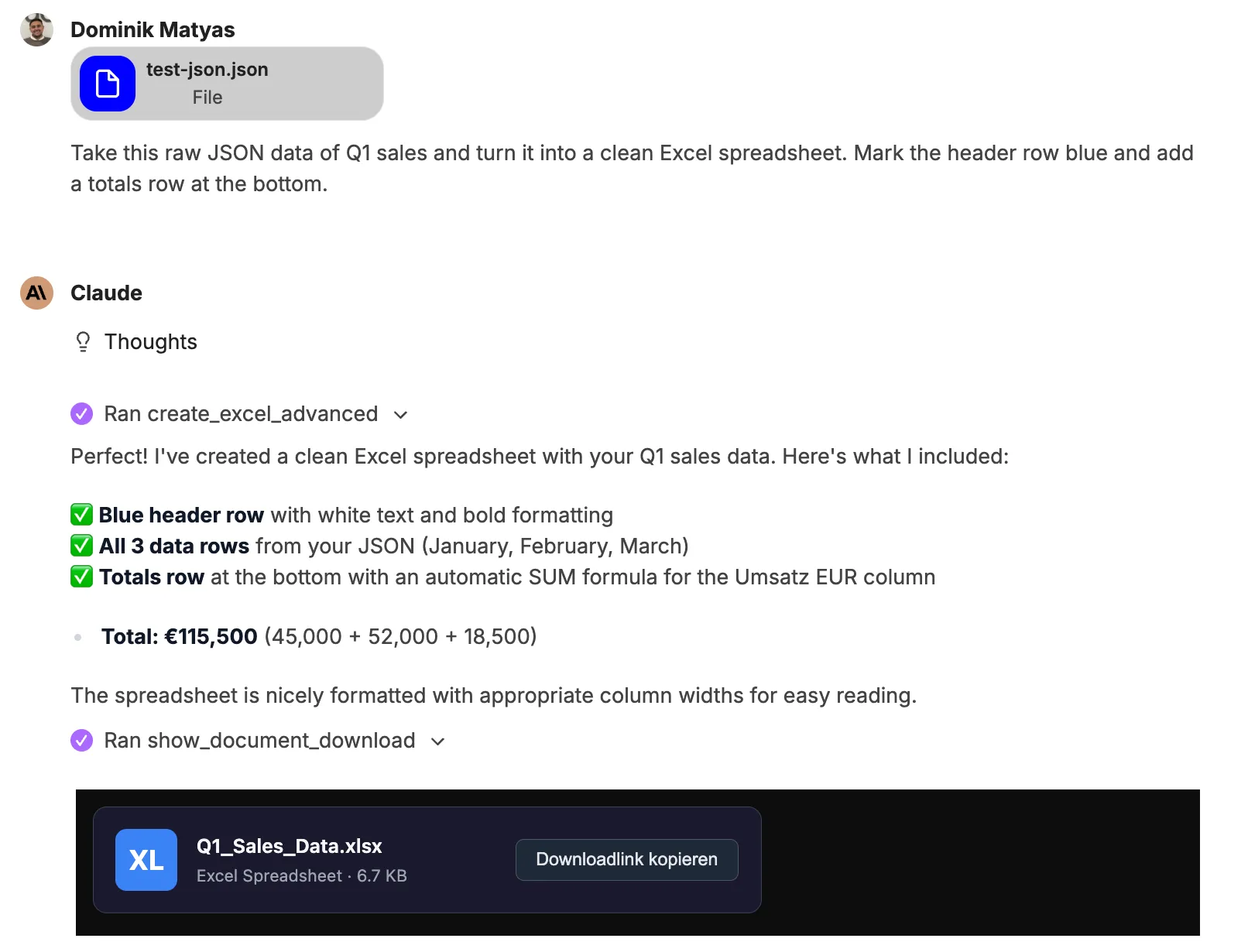
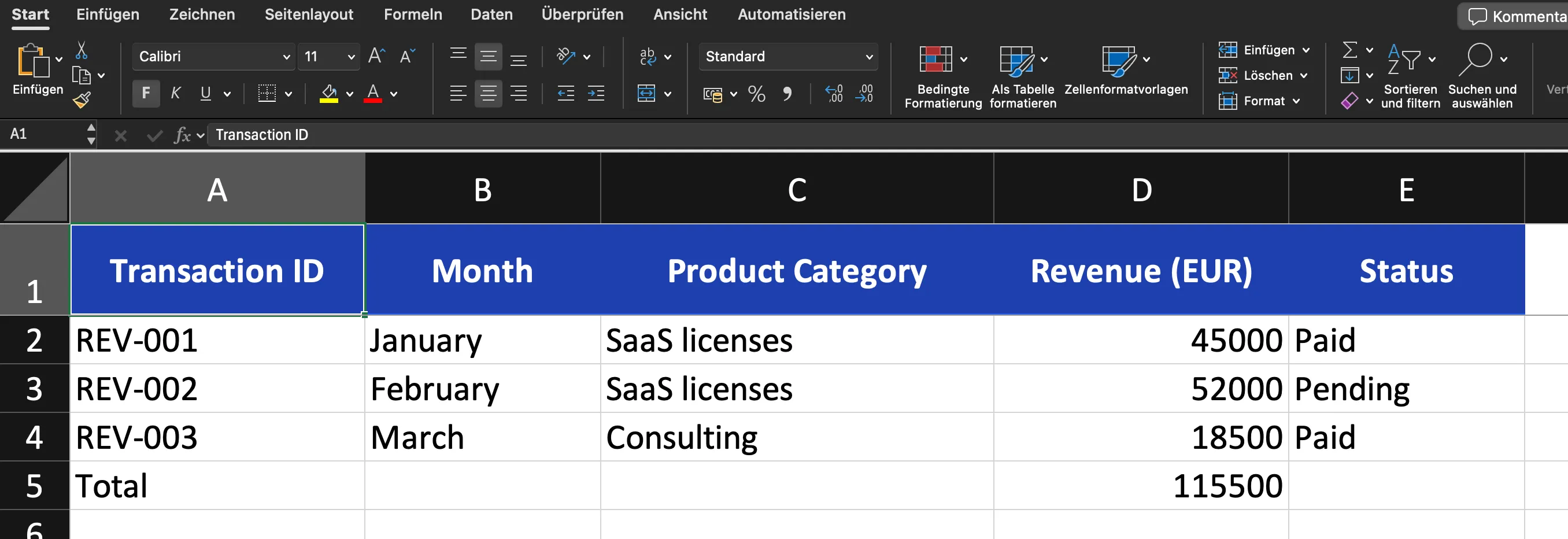
Example: JSON to Excel
Chat:
Result:
Data Processing & Code Export
Section titled “Data Processing & Code Export”Structured data such as JSON or CSV can be converted directly into clean Excel spreadsheets or Word documents. In addition, any text-based files and code scripts can be created (e.g. SQL, JSON, YAML, XML, HTML, Python or JS).
Example: Meeting minutes in PDF document
Chat:
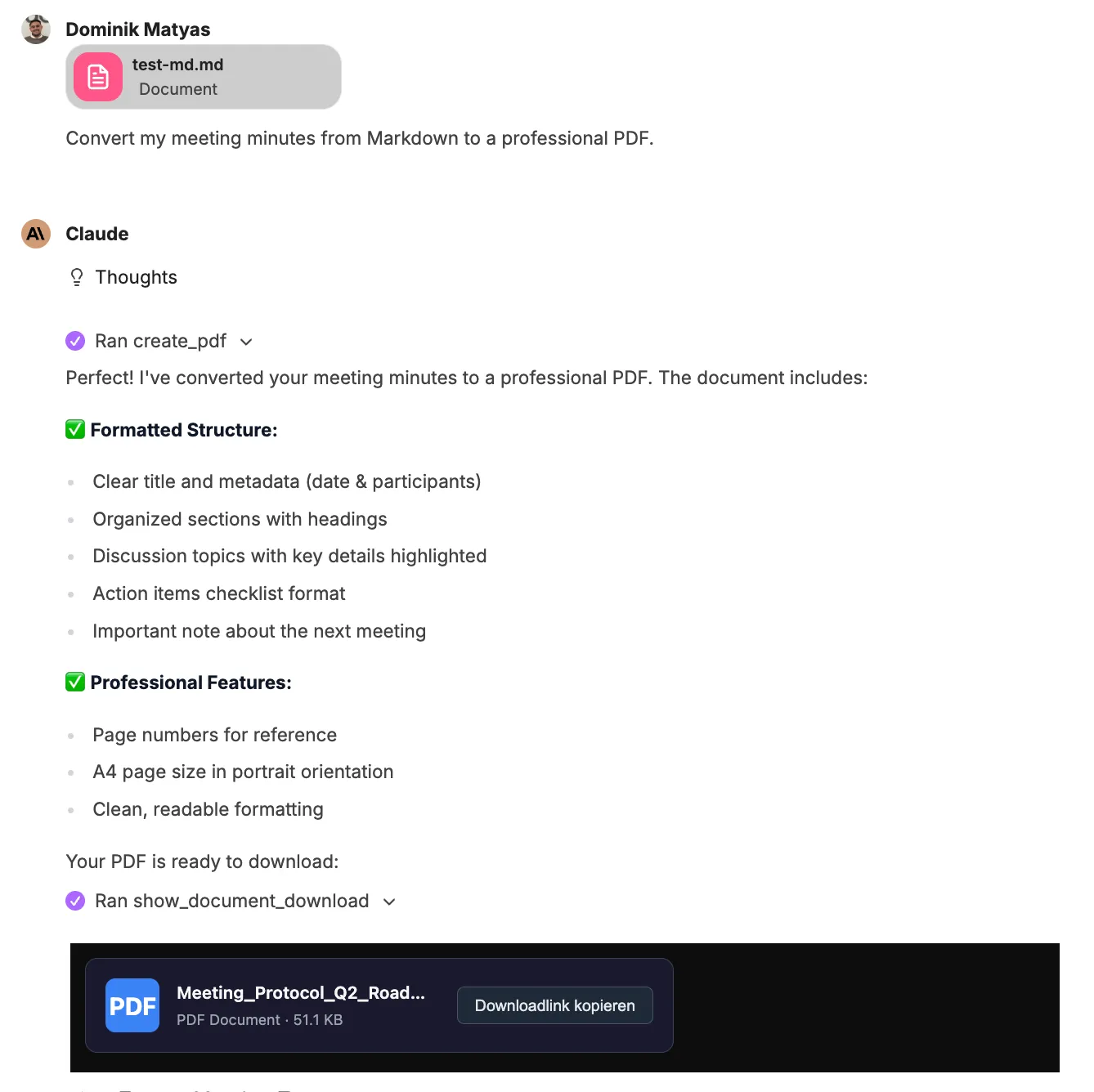
Result:
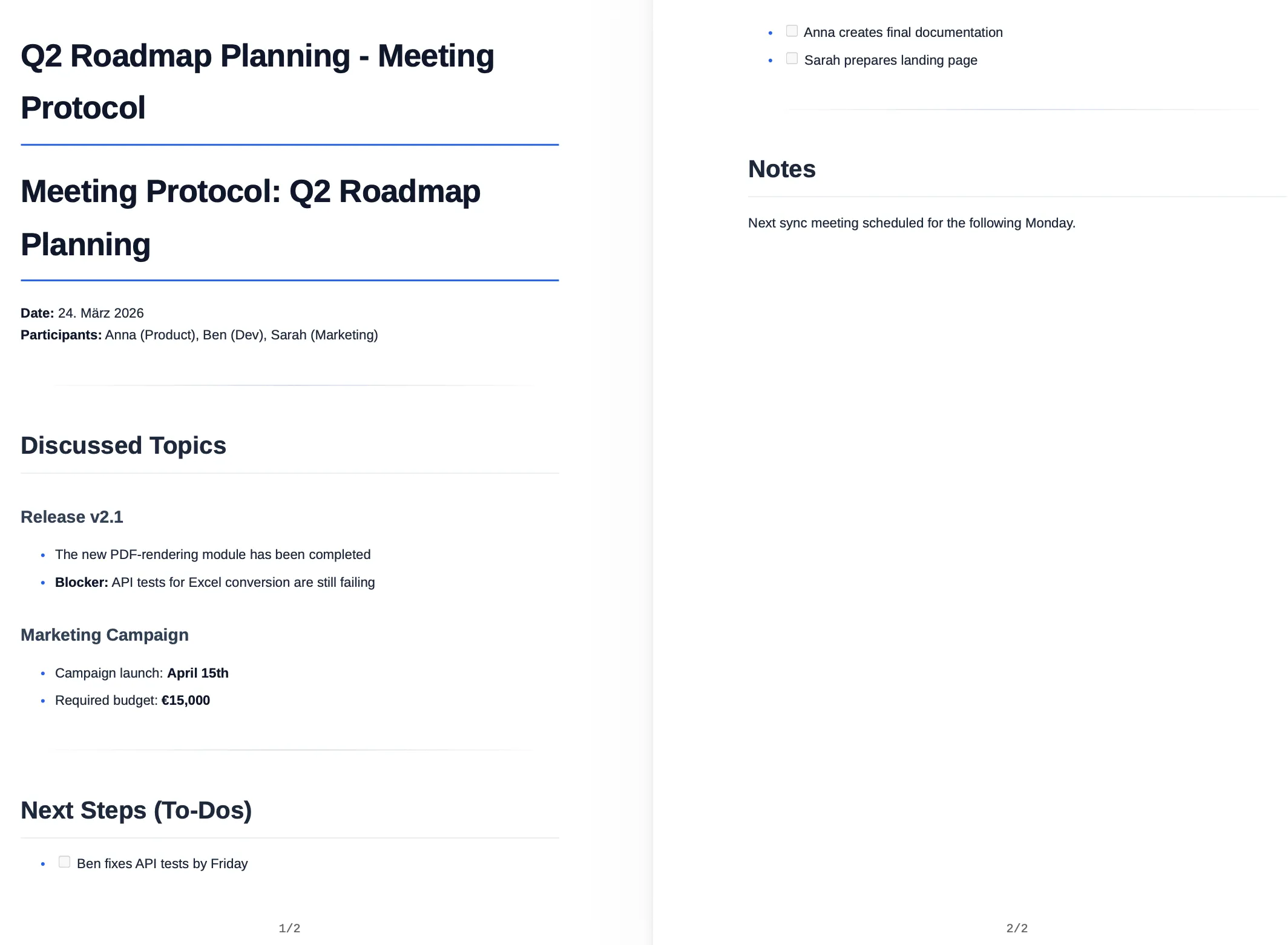
Visual Diagrams & Charts
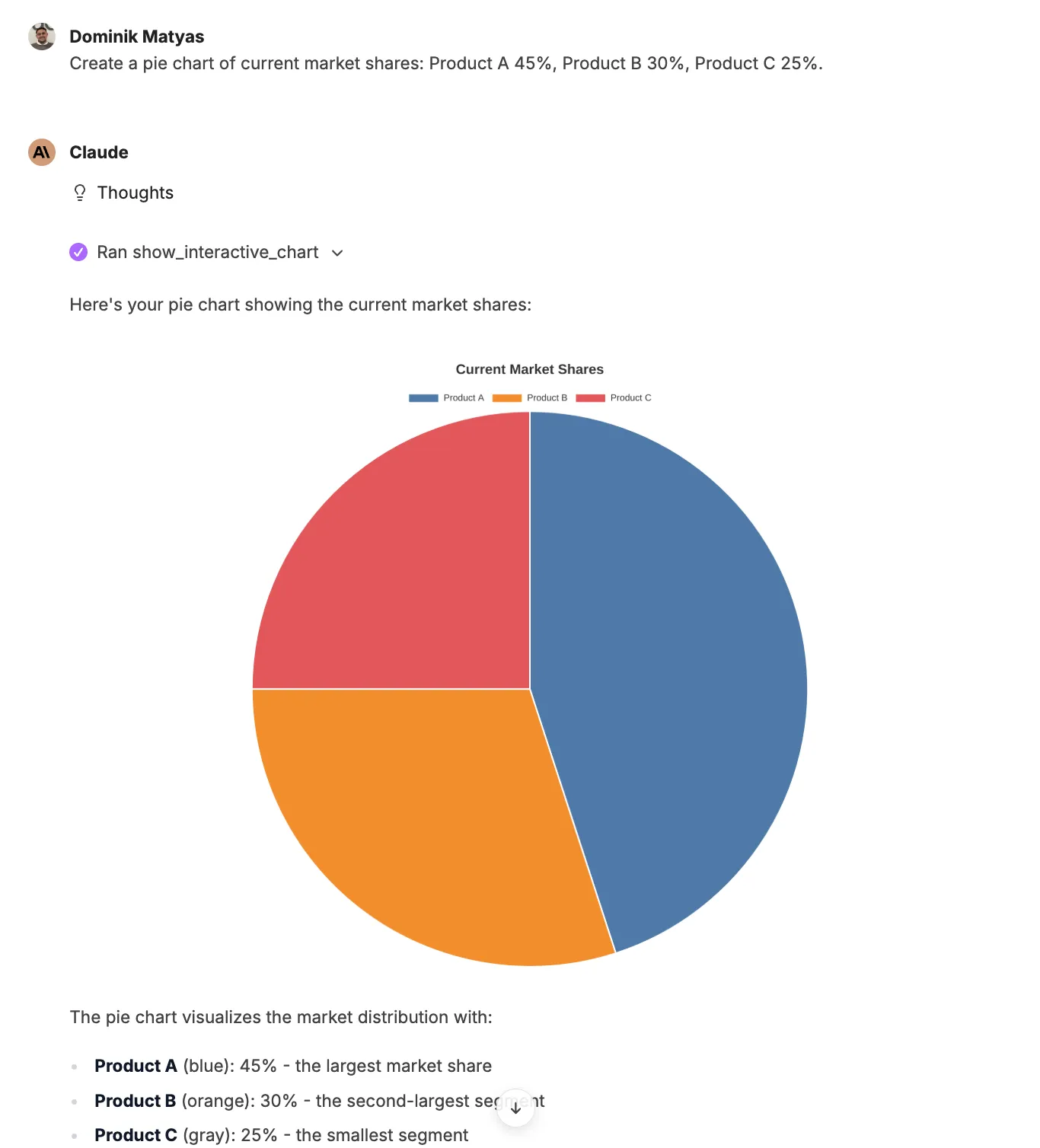
Section titled “Visual Diagrams & Charts”Raw numbers can be visualized directly as meaningful graphics.
- Interactive charts: Bar, line, pie, scatter, bubble or radar charts including zoom function and image export can be created.
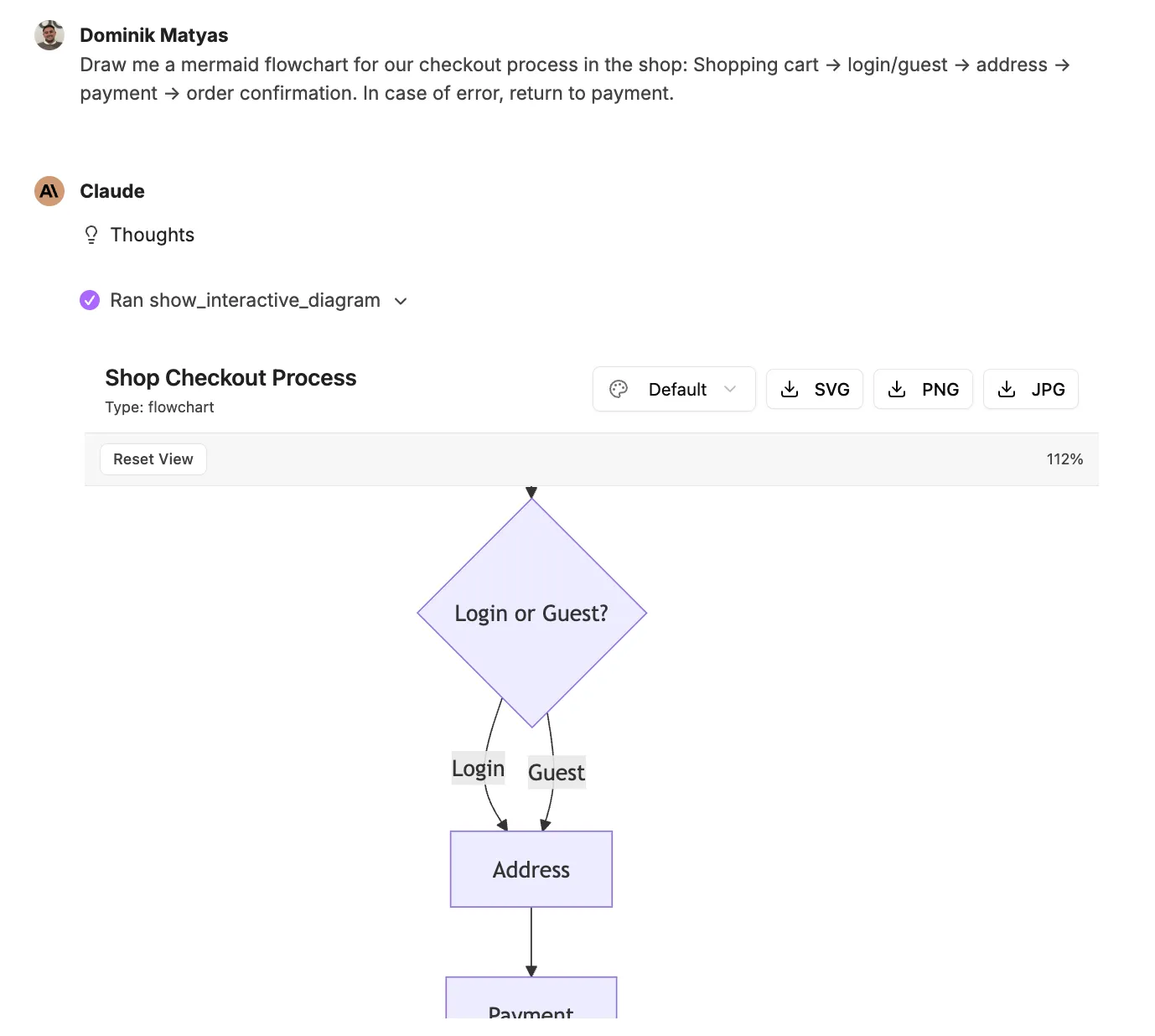
- Mermaid diagrams: Flowcharts, sequence diagrams, class diagrams and state machines can be generated via prompt.
Example: Pie chart
Example: Mermaid Flowchart
File Conversion & Data Extraction
Section titled “File Conversion & Data Extraction”- Conversion: You can flexibly switch between formats (Excel ↔ CSV/JSON, Word ↔ PDF, Markdown ↔ HTML, etc.).
- Extraction: Data and texts can be read and extracted from existing Excel, Word and PDF files.
- Image Editing: The size of images can be changed and converted to other graphic formats.
Intelligent Template Management
Section titled “Intelligent Template Management”Templates enable reusable document generation with dynamic content. However, you cannot simply upload a finished document — it must be prepared with placeholders first.
Preparing Templates
Section titled “Preparing Templates”Templates use double curly brace syntax: {placeholder}. Open the document in its native application and insert placeholders like {CompanyName}, {Date}, {Address} wherever CompanyGPT should insert dynamic content. Placeholder names are freely choosable but should be descriptive.
- Word (.docx): Place
{placeholder}directly in the document text. Example: “Dear{Salutation}{LastName}, …” or a table cell with{InvoiceAmount} - Excel (.xlsx): Place
{placeholder}in individual cells. Example: Cell A1 with{EmployeeName}, Cell B1 with{Department} - PowerPoint (.pptx / .potx): Place
{placeholder}in text boxes on slides. Example: Title slide with{ProjectName}, content slide with{Summary}
Advanced Template Syntax
Section titled “Advanced Template Syntax”Besides simple {placeholder} markings, Word templates support advanced expression syntax for dynamic content such as loops to create rows in tables.
Table Loops in Word
Section titled “Table Loops in Word”Loops in Word tables are controlled via dedicated rows. The FOR and END-FOR commands are placed in their own table rows respectively:
| Name | Since Joined |
|---|---|
{FOR person IN people} | |
{= $person.name} | {= $person.joiningYear} |
{END-FOR person} |
- The FOR row marks the loop start – it is removed during rendering.
- The body row is duplicated for each entry in the array.
- The END-FOR row closes the loop – it is also removed.
Using Templates in Chat
Section titled “Using Templates in Chat”Once uploaded, reference the template in the chat and provide the data for the placeholders. CompanyGPT replaces all {placeholder} markers with the provided values and generates the finished document.
Example prompt: “Create an invoice using the ‘Invoice Template’. Customer name: Sample Inc., Invoice amount: $1,500, Date: April 15, 2026”
File Management & Organization
Section titled “File Management & Organization”- Data Transfer: Files can be uploaded and generated documents can be downloaded directly.
- Structuring: Files can be clearly organized into folders; in addition, ZIP archives can be created for the bundled download of several documents.
- Administration: The overview of the document organization is maintained, while system settings and stored company information can be checked directly in the addon.