
Settings
The settings define what generated documents look like when no template is used. You set them once, and they are applied to every newly created document, chart and presentation.
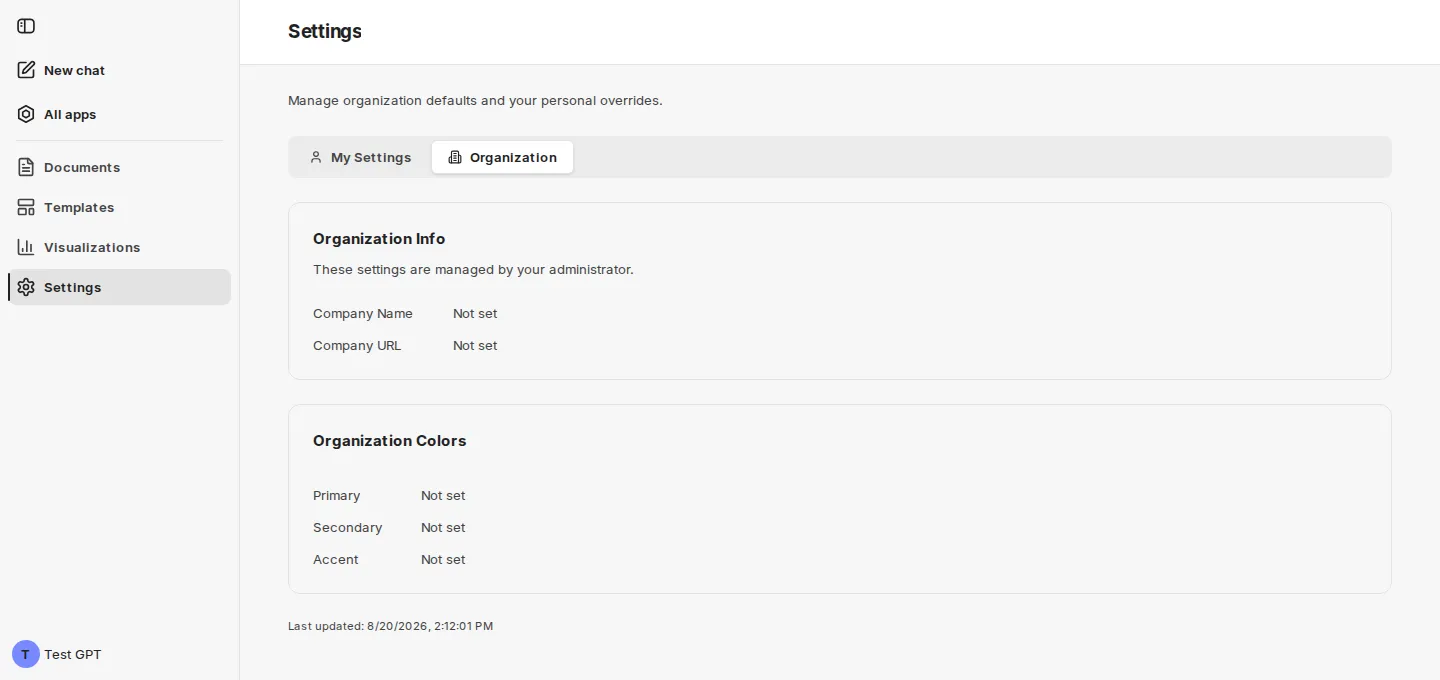
The area is split in two, shown by the tabs above the cards:
| Tab | Effect |
|---|---|
| My Settings | personal overrides for colors, typography, document defaults and logo; empty fields fall back to the organization default |
| Organization | default for all users; editable with administrator rights only |
The interface language is not set here but in the account menu at the bottom of the sidebar – see The interface.
Organization
Section titled “Organization”In the Organization tab, administrators edit these cards:
- Organization Info with Company Name and Company URL. The hint reads: “Edit your organization details. Changes affect all users.”
- Organization Colors with the three base colors Primary, Secondary and Accent – each via a color picker or as a hex value. These colors then show up not only in documents but also in the charts produced in the chat.
- Extended Colors, Typography and Document Defaults as defaults for all users.
- Organization Logo with Upload Logo or Replace Logo and Delete Logo – the image file used in generated documents.
Saving is done via Save Organization Settings. Below it, the interface shows when and by whom the state was last changed.
Users without administrator rights only see in the Organization tab what applies: “These settings are managed by your administrator.”
My Settings
Section titled “My Settings”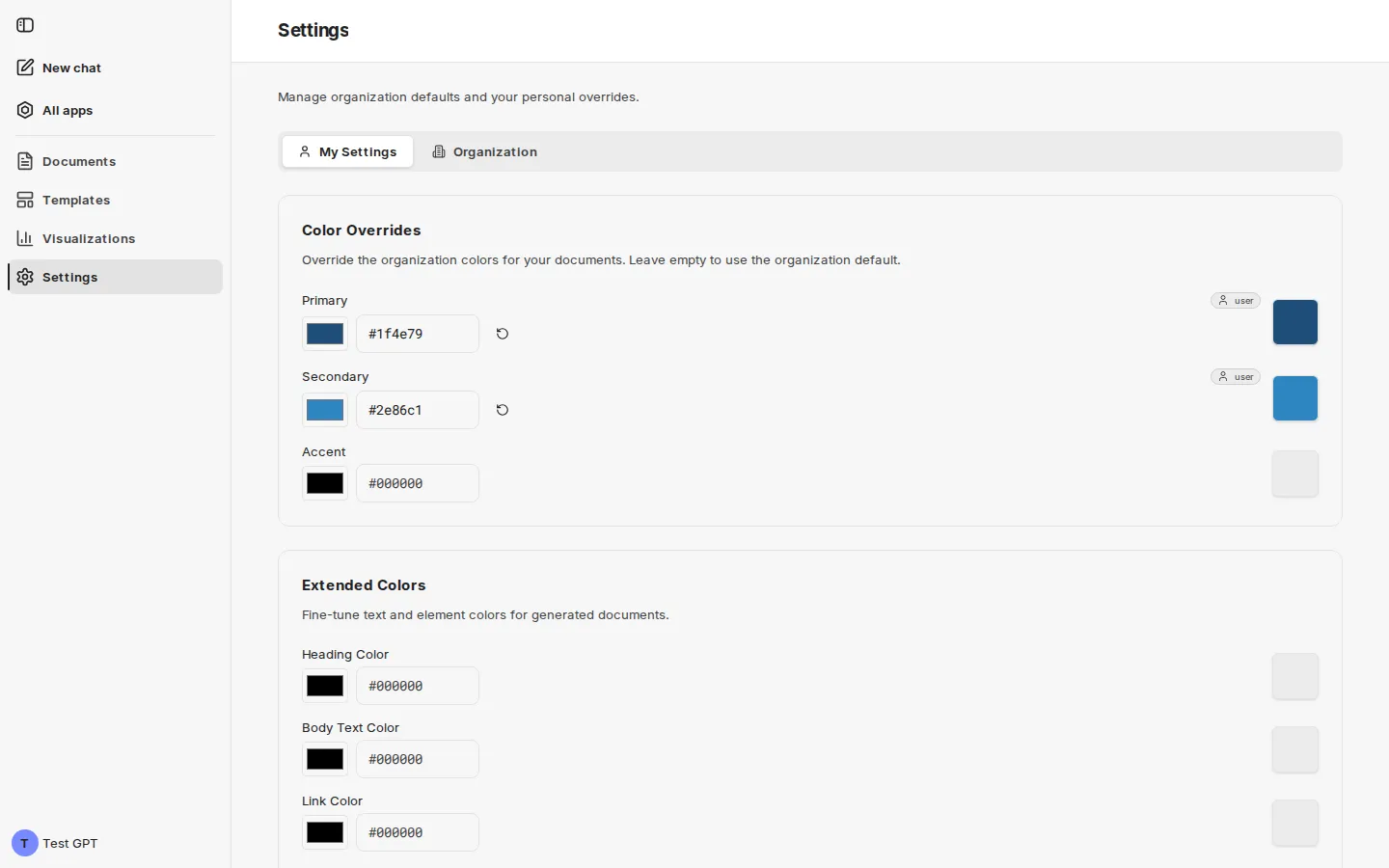
In the My Settings tab you override the organization’s defaults for your own documents. It contains these cards:
| Card | Content |
|---|---|
| Color Overrides | the same three colors Primary, Secondary and Accent: “Override the organization colors for your documents. Leave empty to use the organization default.” If you set a color yourself, the Org default is shown below it for comparison; Reset to organization default clears the field again. |
| Extended Colors | Heading Color, Body Text Color, Link Color, Table Header Background, Table Header Text and Code Background |
| Typography | your own fonts and font sizes |
| Document Defaults | your own page layout, header and footer |
| Logo | “Upload a personal logo to override the organization logo in your documents.” – via Upload Logo; Remove My Logo restores the organization logo |
| Preview | shows how the resolved colors look together |
For the colors and the logo, a badge next to the field name shows where the current value comes from: org from the organization default, user from your own settings. Saving is done via Save Settings.
Typography
Section titled “Typography”The Typography card exists in both tabs: in the Organization tab as a default, in the My Settings tab as a personal override.
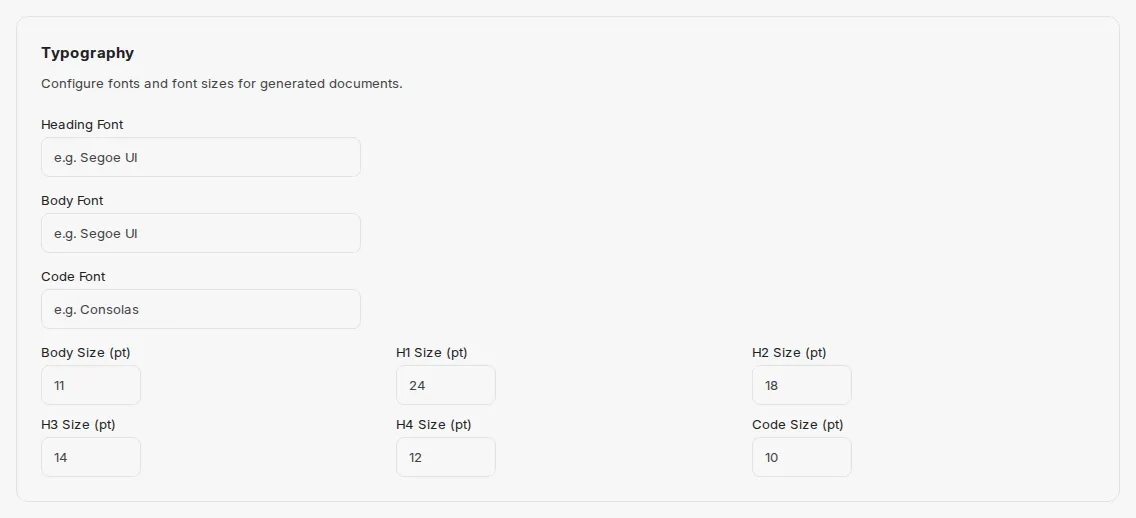
“Configure fonts and font sizes for generated documents.”
| Field | Placeholder in the field |
|---|---|
| Heading Font | e.g. Segoe UI |
| Body Font | e.g. Segoe UI |
| Code Font | e.g. Consolas |
| Body Size (pt) | 11 |
| H1 Size (pt) | 24 |
| H2 Size (pt) | 18 |
| H3 Size (pt) | 14 |
| H4 Size (pt) | 12 |
| Code Size (pt) | 10 |
Document Defaults
Section titled “Document Defaults”The Document Defaults card also exists in both tabs.
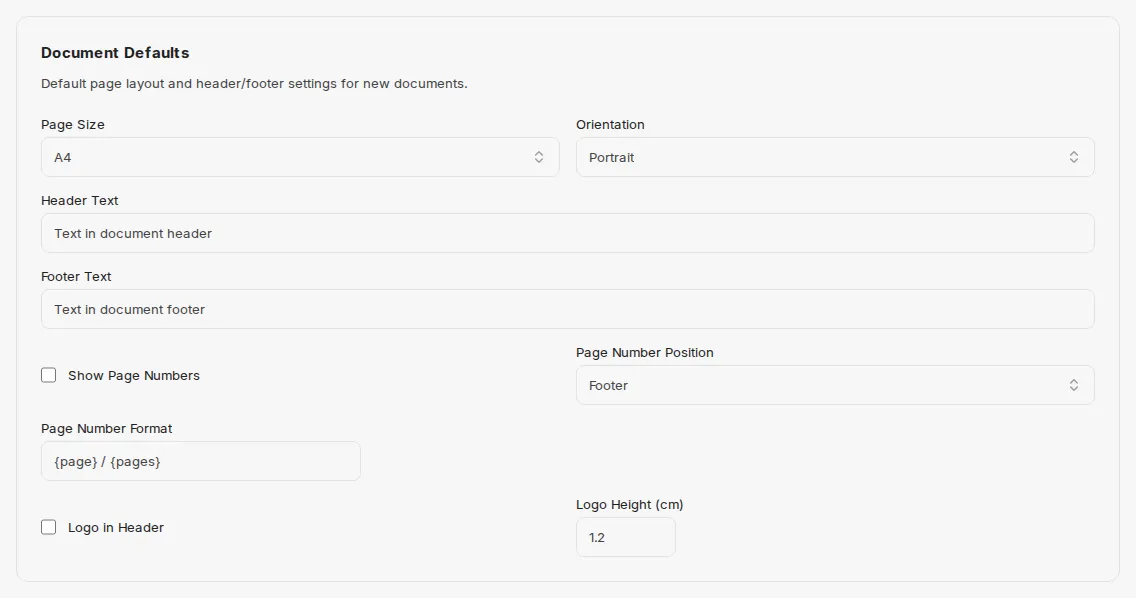
“Default page layout and header/footer settings for new documents.”
| Field | Meaning |
|---|---|
| Page Size | paper format, for example A4 |
| Orientation | Portrait or Landscape |
| Header Text | text in the document header |
| Footer Text | text in the document footer |
| Show Page Numbers | switches page numbering on |
| Page Number Position | Header or Footer |
| Page Number Format | pattern of the page number, for example {page} / {pages} |
| Logo in Header | places the logo in the header |
| Logo Height (cm) | height of the logo, for example 1.2 |
Next: Setting up the agent.