
All apps
All apps is the entry point to all applications around CompanyGPT. The overview shows, as tiles, the addons and links that are enabled for your account. Which tiles you see is decided by your organization.
Opening All apps
Section titled “Opening All apps”You can reach the overview in two ways.
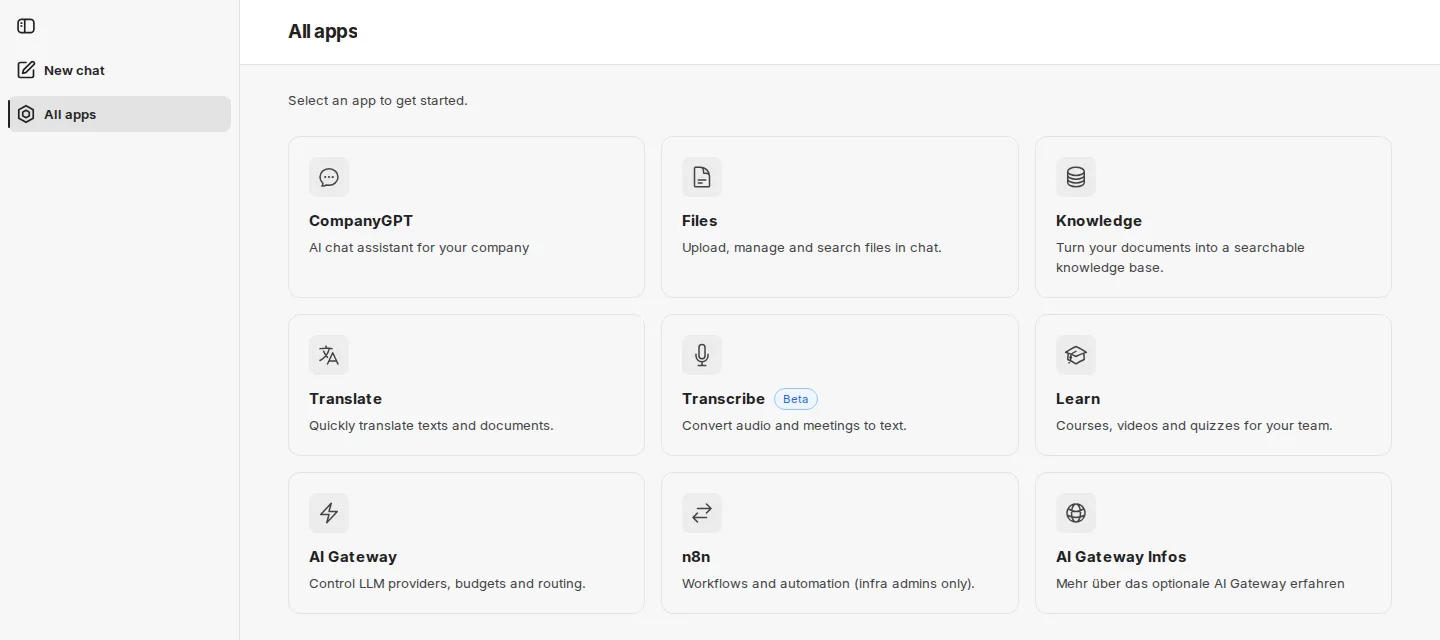
As a page. In every addon, All apps in the sidebar takes you to the overview (see Shared interface). The address is https://COMPANY.company-gpt.com/companygpt. The page is called All apps and shows the hint Select an app to get started. The first tile is always CompanyGPT, which takes you back to the chat. Clicking a tile opens the app in the same tab.
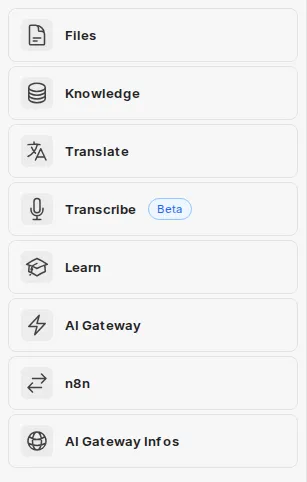
In the chat. In the chat sidebar, Apps opens a compact list of the same apps, without the CompanyGPT tile. Clicking an entry opens the app in a new tab, so the chat stays open.
Each tile shows the name of the app and a short description. These tiles may appear:
| Tile | Text on the tile | Learn more |
|---|---|---|
| CompanyGPT | AI chat assistant for your company | User interface |
| Files | Upload, manage and search files in chat. | companyFILES |
| Knowledge | Turn your documents into a searchable knowledge base. | companyRAG |
| Translate | Quickly translate texts and documents. | companyTRANSLATE |
| Transcribe | Convert audio and meetings to text. | companyTRANSCRIBE |
| Learn | Courses, videos and quizzes for your team. | companyLEARN |
| Admin | Manage users, groups and settings. | companyADMIN |
| Insights | Usage and costs of companyGPT. | Insights |
| AI Gateway | Control LLM providers, budgets and routing. | AI Gateway |
| n8n | Workflows and automation (infra admins only). | – |
The Knowledge tile opens companyRAG, not companyKNOWLEDGE.
Some environments still have the Dashboard tile of the former companyDASHBOARD. It now leads to Insights in companyADMIN, where you analyze usage and costs.
Your organization can add further knowledge areas as Custom tiles.
Alpha and Beta
Section titled “Alpha and Beta”Some tiles carry the label Alpha or Beta. It marks apps that are not yet in their final form: Alpha for an early stage, Beta for a more advanced one. Features of these apps may still change.
Your organization’s own links
Section titled “Your organization’s own links”Besides the addons, All apps can show links your organization has added, for example to the intranet. They appear after the addon tiles. Such a tile is only a link: whether you can use the target is decided by the target itself.
If no apps appear
Section titled “If no apps appear”- While the tiles are loading, grey placeholders stand in their place.
- If no app is enabled for your account, the list in the chat shows: No apps are currently available for your account. Contact your administrator. In this case the All apps page shows only the CompanyGPT tile.
- If you are no longer signed in, Sign-in required appears with the Sign in button. From the Apps area in the chat, the sign-in opens in the main window.
For administrators
Section titled “For administrators”Who sees which tiles
Section titled “Who sees which tiles”Depending on the environment, the tiles come from companyADMIN or from the configuration that innFactory maintains for your environment.
- From companyADMIN: The tile of an addon is shown to people who have the corresponding permission (exceptions: n8n and AI Gateway, see below). Under Configuration → Tools you manage the Extension tiles and, with Add tile, create Custom tiles: with Name, Address, optionally Description and Icon, and the Visibility (Every signed-in user, Specific roles or Specific groups). The page also shows whether All apps reads its tiles from companyADMIN in your environment.
- From the configuration: Otherwise innFactory controls visibility through groups in your directory. Request changes from innFactory.
The Alpha and Beta labels are set up by innFactory on request. You add your own links via Custom tiles in companyADMIN.
Changes to the tiles appear at the latest when All apps is reloaded.
A tile is not a permission
Section titled “A tile is not a permission”You grant permissions for addons in companyADMIN, see Extensions. One exception is an extension’s switch under Configuration → Tools: for addons whose permissions companyADMIN manages, it switches tile and permissions together (Active (tile and rights)). For applications that manage access themselves, such as n8n and AI Gateway, the switch is called Show in companyTOOLS and only shows or hides the tile – the same for all signed-in users, admins included.