
Setup for IT Admins: the Onboarding Portal
Before innFactory installs CompanyGPT for your organization, your Microsoft Entra tenant is prepared: security groups, consent for innFactory’s maintenance app, guest access for the innFactory team, and an app registration through which your employees will later sign in. You do this preparation yourself in the onboarding portal at onboarding.company-gpt.com.
This page is intended for your organization’s IT admins. CompanyGPT users don’t need to do anything. The portal is in English – except for the permission list in the CompanyGPT App step, which is shown in German; button and step names are given here exactly as the portal shows them.
What the Portal Is For
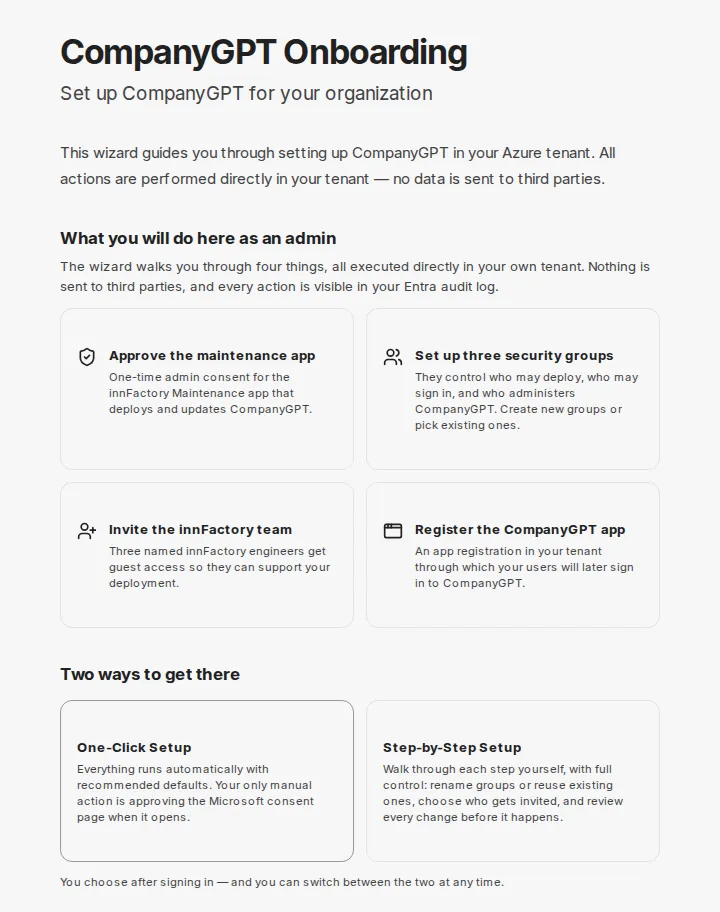
Section titled “What the Portal Is For”The portal guides you through all preparations in your tenant. At its core, there are four tasks:
- Approve the maintenance app: a one-time admin consent for innFactory’s maintenance app, which innFactory uses to deploy and update CompanyGPT.
- Set up three security groups: they control who may deploy, who may sign in, and who administers CompanyGPT. You can create new groups or use existing ones.
- Invite the innFactory team: innFactory staff receive guest access so they can support the deployment.
- Register the CompanyGPT app: an app registration in your tenant through which your users will later sign in to CompanyGPT.
All actions run directly in your tenant and with your admin account. For every step, the portal explains what happens and which permissions are used.
Prerequisites
Section titled “Prerequisites”- Admin rights in Microsoft Entra ID: You sign in with an admin account of the tenant in which CompanyGPT is to be set up. The Global Administrator role is recommended, because several steps grant admin consent. If your account lacks rights, the affected step reports an error.
- Only for hosting on Microsoft Azure: access to the Azure subscription in which CompanyGPT is to run. No Azure subscription is needed for hosting on STACKIT.
- Partner relationship: The portal lists as a prerequisite that innFactory is registered as a partner in your tenant (indirect reseller relationship). This does not block you from starting the setup. Please clarify any questions about it with your innFactory contact.
- Allow pop-ups: The portal opens pop-ups or new tabs for Microsoft’s consent pages. Allow them for
onboarding.company-gpt.com.
Process
Section titled “Process”Sign In and Choose the Hosting
Section titled “Sign In and Choose the Hosting”If innFactory has sent you a personal link to the portal, use it: it already contains details about your environment.
-
Open onboarding.company-gpt.com and click Sign in with Microsoft. Sign in with your admin account.
-
Under Where will CompanyGPT be hosted?, choose the hosting:
- Microsoft Azure: CompanyGPT runs in your own Azure subscription.
- STACKIT: CompanyGPT runs on STACKIT infrastructure operated by innFactory. Sign-in and user management still use your Entra tenant. Learn more under CompanyGPT Sovereign.
-
Under Azure Tenant, select your tenant. The home tenant of your account is shown. For hosting on Azure, also select the subscription under Azure Subscription.
-
Click Start Onboarding. Microsoft may ask for your consent to the portal’s permissions at this point.
On the start page, Which permissions does this onboarding app use — and why? lets you read in advance which permissions the portal uses and what for.
One-Click or Step by Step
Section titled “One-Click or Step by Step”On first start, the portal asks How would you like to set up CompanyGPT?. Both paths set up the same things, and you can switch at any time.
- One-Click Setup (marked Recommended): All steps run automatically with recommended defaults; each executed step is shown live. Your only manual action: when Microsoft’s consent page for the maintenance app opens in a new tab, sign in there as Global Administrator and accept. The setup then continues on its own. Start with Start One-Click Setup. If a step fails, choose Retry or Continue in Advanced Setup.
- Step-by-Step Setup: You go through each step yourself. You can rename groups or use existing ones, decide who gets invited, and review every change before it is executed. Under What happens in this step?, each step shows what happens, what you can adjust, and which permissions it uses.
If you open the portal again later, it resumes from the saved progress.
Phase 1: Preconditions
Section titled “Phase 1: Preconditions”You (or the One-Click assistant) carry out these steps in your tenant. The names match the step list in the portal.
| Step | What happens | Permission used |
|---|---|---|
| Check Sign-in Policies | The portal reads the Conditional Access policies and lists those that could block guest accounts or the deployment. Nothing is changed. If policies restrict external access, the portal tells you what to allow – for example the domain innfactory.ai. | Policy.Read.All (read-only) |
| Security Groups | Three security groups are created or existing ones are linked: Infrastructure Admins (deployment), Users (may sign in to CompanyGPT), and App Admins (CompanyGPT administration). Default names: COMPANYGPT_INFRASTRUCTURE_ADMINS, COMPANYGPT_USERS, COMPANYGPT_APP_ADMINS. | Group.ReadWrite.All |
| Approve Maintenance Access | First, you grant the portal the Graph permissions for the following steps. Then Microsoft opens the consent page for innFactory’s maintenance app. The consent creates its service principal in your tenant; the app only gets actual access through the group membership in the next step. | Admin consent on Microsoft’s page; afterwards the portal only checks, read-only, that the service principal exists |
| Maintenance → Admin Group | The maintenance app becomes a member of the Infrastructure Admins group. Only this membership allows innFactory to deploy. Usually this has already happened automatically in the previous step. | GroupMember.ReadWrite.All |
| Subscription Permissions (Azure only) | The Infrastructure Admins group is assigned the Owner role on the selected Azure subscription – for the entire subscription. This lets the deployment create the CompanyGPT resources there. | Azure Service Management (user_impersonation) |
| Invite innFactory Team | innFactory staff are invited as guests and added to the recommended groups; the portal shows their names and addresses. In Step-by-Step mode, you choose the groups per person or skip individual invitations. | User.Invite.All, GroupMember.ReadWrite.All |
| CompanyGPT App | An app registration named companyGPT plus your company name is created – pre-configured with sign-in settings, the required Microsoft Graph permissions, and admin consent so your users are not prompted individually. Alternatively, you use an existing app registration. | Application.ReadWrite.All, DelegatedPermissionGrant.ReadWrite.All, Directory.ReadWrite.All, AppRoleAssignment.ReadWrite.All |
| App Ownership | The maintenance app becomes a co-owner of the CompanyGPT app so that updates can keep its configuration (redirect URLs, permissions) up to date. Usually this has already happened in the previous step and is only verified here. | Application.ReadWrite.All |
| Finish & Notify | The portal shows a summary (group and app IDs, company name, contact email). Save & Notify saves it and notifies the innFactory team that your tenant is ready. Nothing changes in your tenant in this step. | No Microsoft Graph permission |
For hosting on STACKIT, the Subscription Permissions step is skipped; Phase 1 then has eight steps instead of nine.
Permissions of the CompanyGPT App
Section titled “Permissions of the CompanyGPT App”By default, the CompanyGPT app receives the full set of permissions that CompanyGPT and the Microsoft 365 add-in are designed for. In Step-by-Step mode, you can expand the list in the CompanyGPT App step and deselect individual permissions. It is divided into the groups Anmeldung (erforderlich) (sign-in, required), companyGPT Kern (CompanyGPT core), Microsoft 365 Add-in, and Anwendungsberechtigungen (application permissions). The sign-in permissions cannot be deselected. If you deselect others, the portal points out which features will then not work fully.
The portal determines the domain under which CompanyGPT will be reachable (for example COMPANY.company-gpt.com) automatically. You can adjust the app’s display name and domain in Step-by-Step mode.
Phase 2: Rollout
Section titled “Phase 2: Rollout”In the Deployment (innFactory) step, innFactory deploys CompanyGPT. You don’t need to do anything. The step stays locked until innFactory unlocks it for the deployment; at the end, innFactory marks it complete. The portal header shows the current status (Locked, In Progress, Live or Change Required). Once all steps are done, the portal shows Onboarding Complete.
What Happens Next
Section titled “What Happens Next”- Deployment: After Finish & Notify, the innFactory team is notified and sets up CompanyGPT – in your subscription for hosting on Azure, in the environment operated by innFactory for hosting on STACKIT.
- Notes from innFactory: If innFactory has something to tell you, it appears in the portal in the Notes from innFactory box.
- Access for your users: You control who may sign in to CompanyGPT through membership in the Users group (
COMPANYGPT_USERSby default). - New permissions after updates: If CompanyGPT needs additional Microsoft permissions after an update, innFactory sends you a link to the Renew Admin Consent page (see Troubleshooting).
- Support access: If innFactory needs guest access for a support case, you receive a link to the Support Access Invitation page. There you see who is to be invited and to which groups, and you confirm the invitation yourself.
Security and Data Protection
Section titled “Security and Data Protection”- Delegated permissions: The portal acts with your admin account. It can never do more than you can, and only while you are signed in.
- Directly in your tenant: The portal makes all changes directly in your tenant. They can be traced in the Microsoft Entra ID audit logs, and the role assignment on the Azure subscription in the Azure activity log.
- Read-only where possible: Conditional Access policies are only read, never changed. The portal does not access emails or files in your tenant.
- What is stored: innFactory only stores the setup progress and the details needed for the rollout – for example the IDs and names of the groups and the app, the invited guests, the sign-in policies found, your contact details, and the name and email address of the admins who use the portal for your tenant. The summary in Finish & Notify shows what is transmitted.
- Revocable at any time: You revoke consents in Microsoft Entra ID under Enterprise applications; you can remove group memberships, guests, and the role assignment on the subscription at any time. If you remove the maintenance app from the Infrastructure Admins group, its Owner rights on the subscription end; tokens that were already issued can stay valid until they expire. As owner of the CompanyGPT app, the maintenance app stays listed until you remove it in Microsoft Entra ID under App registrations → Owners.
Troubleshooting
Section titled “Troubleshooting”“Please complete Step … first”
Section titled ““Please complete Step … first””A previous step is not yet done. What counts is the step name in parentheses – for example, Please complete Step 1 (Create Groups) first. means that the Security Groups step is missing. The number in the message may differ from the numbering in the step list. Use the step list to go to the named step and complete it.
Microsoft’s Consent Page Doesn’t Open
Section titled “Microsoft’s Consent Page Doesn’t Open”Allow pop-ups for onboarding.company-gpt.com. The Approve Maintenance Access step also offers a link to grant the consent manually. In One-Click Setup, open the page again with Re-open consent page. If the assistant waits too long for the consent, it stops with a timeout; grant the consent in the opened tab and then choose Retry.
Consent Is Missing or Incomplete
Section titled “Consent Is Missing or Incomplete”Open the consent link you received from innFactory. It has the form https://onboarding.company-gpt.com/consent?tenantId=…. Sign in as Global Administrator of the tenant concerned. The Renew Admin Consent page lists each permission of the CompanyGPT app as Granted or Missing; newly added ones are marked new. Click Grant Admin Consent. If individual permissions cannot be granted automatically, complete the consent via Open Microsoft consent page.
The Subscription Permission Cannot Be Assigned (Azure Only)
Section titled “The Subscription Permission Cannot Be Assigned (Azure Only)”If your subscription is managed through an indirect CSP, the portal shows Azure Resource Access Required. As Global Administrator, you then have to enable “Access management for Azure resources” once – with Enable Access Management directly in the portal or manually in the Microsoft Entra ID properties.
A Step Is Already Set Up
Section titled “A Step Is Already Set Up”If the portal detects that a step is already done in your tenant, it shows Already configured. Accept the current state with Mark as Complete.
The Tenant You Want Doesn’t Appear
Section titled “The Tenant You Want Doesn’t Appear”The portal shows the home tenant of the signed-in account. Sign in with an admin account of the tenant in which CompanyGPT is to be set up.
Further Questions
Section titled “Further Questions”Contact your innFactory contact person. Have your tenant ID and, if applicable, the error message from the portal ready.