
Taking courses and learning
This page describes the path through a course in companyLEARN’s interface. You can do the same steps in the chat – see In the chat.
Finding courses
Section titled “Finding courses”Under Courses you see all published courses as cards. Each card shows the title, the description and the number of chapters. For courses you are enrolled in, a progress bar and a Continue button are added; the button takes you to the course page.
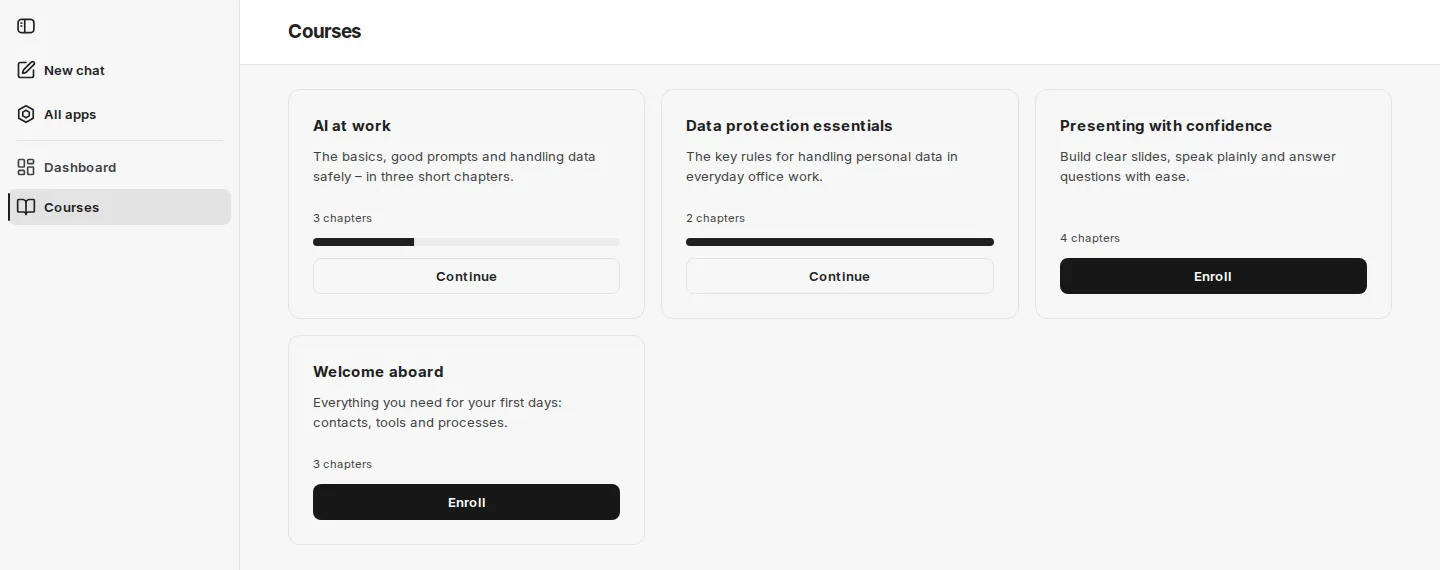
If there are no published courses yet, the page shows “No courses are available yet.”
Enrolling
Section titled “Enrolling”Click Enroll on a course card. The enrollment takes effect immediately; the course then appears on the Dashboard, and the card shows Continue.
If you open a course you are not enrolled in – for example via a link or from the chat – the course page shows the hint “Enroll to start the course.” under Your progress, together with an Enroll button. Until then, the lessons cannot be opened.
The course page
Section titled “The course page”The course page shows Your progress at the top with a bar and a percentage. Below are the chapters as an expandable list with their lessons – each with a video or text icon – and, where present, the chapter’s quiz.
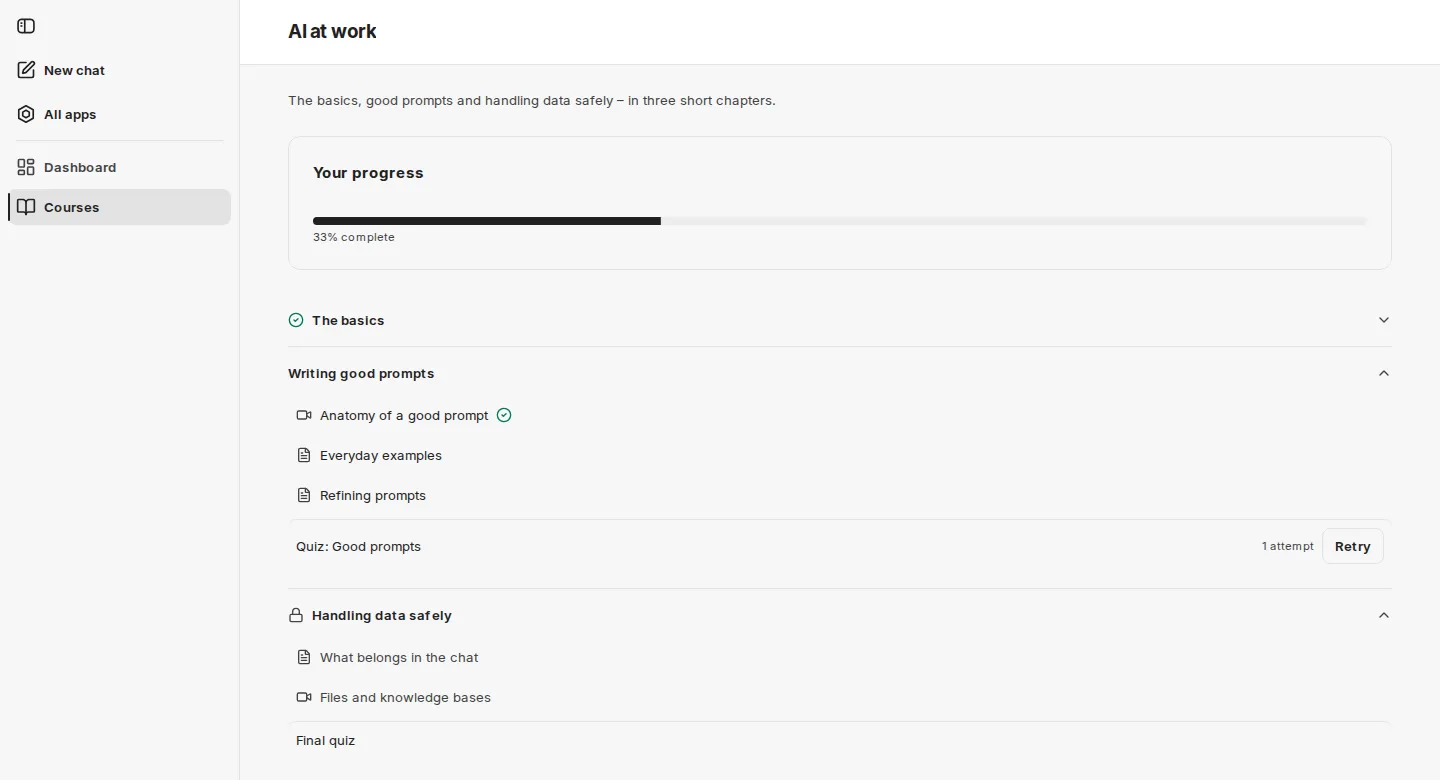
| Indicator | Meaning |
|---|---|
| Lock on a chapter | The chapter is locked. Its hint reads “Complete the previous chapter first”. Its lessons cannot be opened. |
| Check mark on a chapter | The chapter is complete. |
| Check mark on a lesson | The lesson is done. |
| Passed on a quiz | You have passed the quiz. |
| “2 attempts” on a quiz | Number of your attempts so far |
| Start quiz / Retry | Opens the quiz – the first time, or after at least one attempt |
Lessons
Section titled “Lessons”Click a lesson to open it.
- Text lessons show the formatted text. When you are done, click Mark complete.
- Video lessons play the video in the browser; you can skip forward and back. When the video plays to the end, companyLEARN marks the lesson as done automatically. You can also complete it earlier with Mark complete.
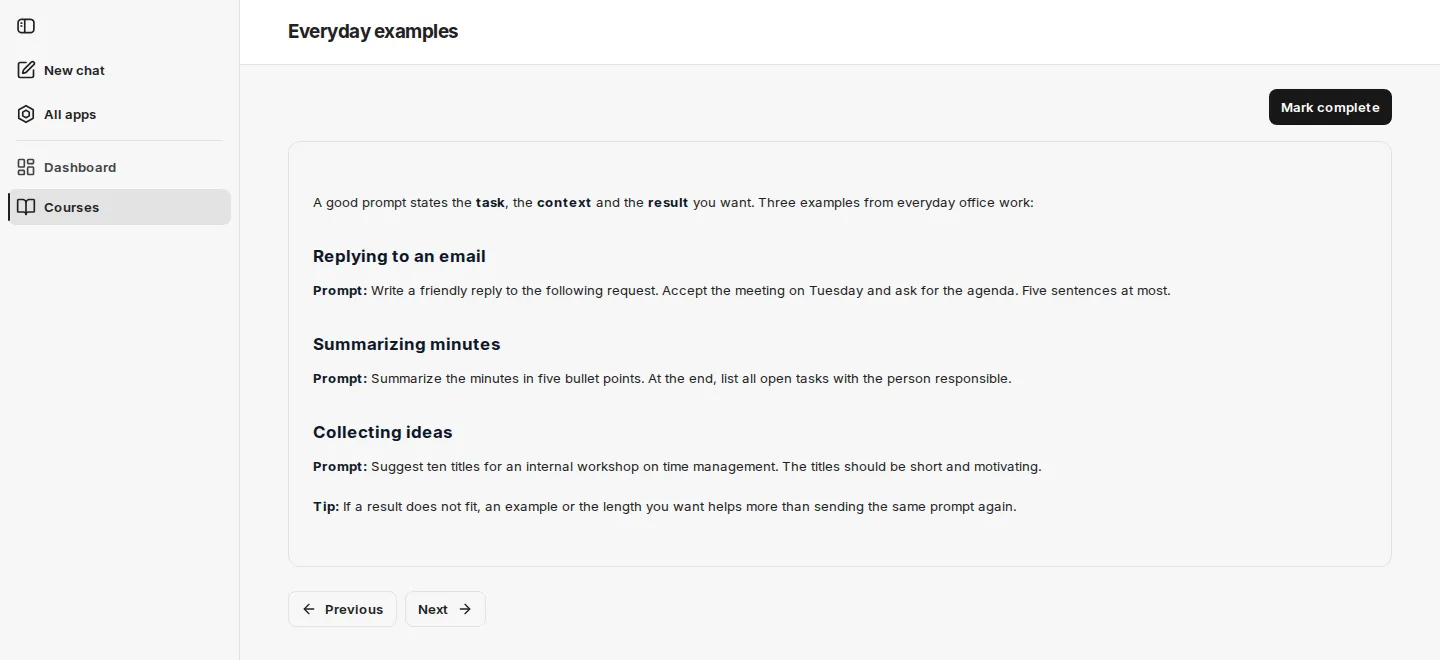
Completed lessons show Completed at the top. Previous and Next take you to the previous or next lesson of the course, across chapter boundaries as well. On the last lesson of a chapter that has a quiz, Take quiz appears in addition.
If Next leads into a chapter that is still locked, you see “This chapter is locked. Complete the previous chapter first.” and a Back to course button.
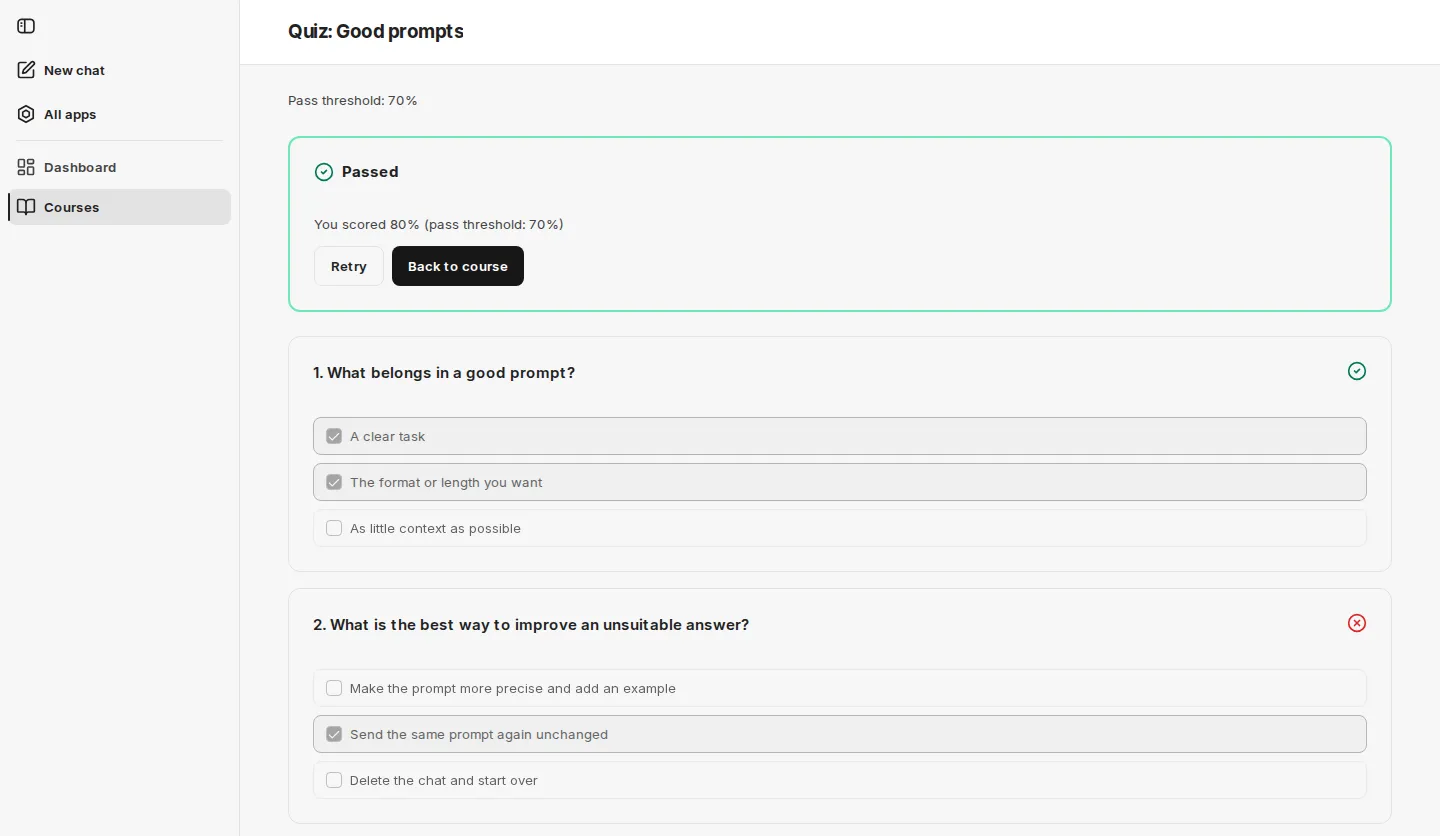
You open a quiz with Start quiz on the course page or Take quiz on the last lesson of the chapter. The pass threshold is shown below the title, for example “Pass threshold: 70%”.
-
For each question, select all answers that apply. A question can have more than one correct answer.
-
As soon as every question has an answer, click Submit answers.
-
The result appears at the top: Passed or Not passed, plus a line such as “You scored 80% (pass threshold: 70%)”. An icon on each question shows whether you answered it correctly or incorrectly.
-
Retry starts a new attempt; Back to course returns you to the course page.
How quizzes are scored
Section titled “How quizzes are scored”- A question only counts as correct if exactly the correct answers are selected – no more and no fewer.
- The score is the share of correctly answered questions in percent, rounded to whole numbers.
- If the score reaches at least the pass threshold, the quiz is passed.
The course admin sets the pass threshold for each quiz; it is prefilled with 70% when a quiz is created. companyLEARN does not show which answers would have been correct.
The number of attempts is not limited. Previous attempts lists all of your attempts with time, score and status. Once you have passed a quiz, it stays passed, even if a later attempt scores lower.
You can take the quiz of an unlocked chapter at any time, even before you have finished all lessons. The chapter, however, is only complete once both are done.
How chapters unlock
Section titled “How chapters unlock”If the course has chapter gating switched on:
- After enrolling, the first chapter is open.
- A chapter is complete once all of its lessons are done and its quiz is passed – if it has one.
- The first chapter that is not yet complete is open; all chapters after it stay locked until it is complete.
If the course admin has switched chapter gating off for a course, all chapters are open after enrolling.
If a course admin changes a running course – for example by adding a lesson to a chapter – a chapter you had already completed may be open again. The chapters after it are then locked until you complete it again.
Dashboard
Section titled “Dashboard”The Dashboard is companyLEARN’s start page. For each course you are enrolled in, it shows a card with a progress bar and a figure such as “40% complete”. The percentage is the share of completed chapters.
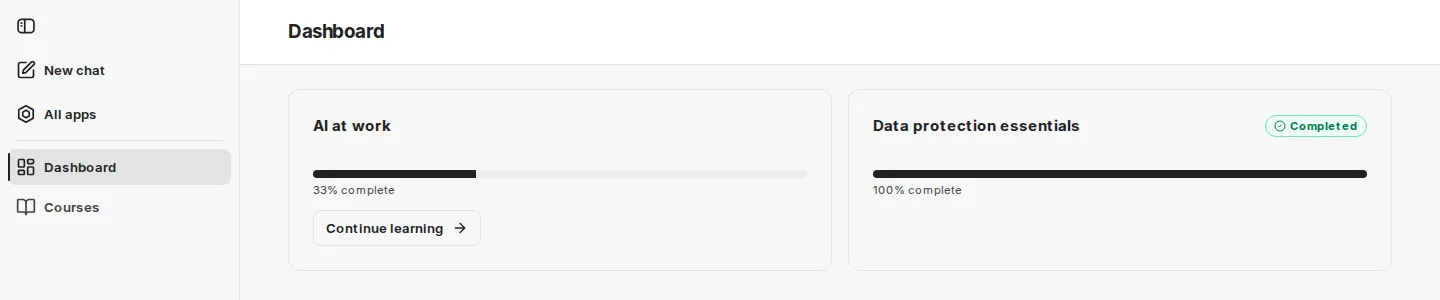
- Continue learning takes you straight to the next step: the first lesson that is not yet done or – once all lessons of the current chapter are done – its quiz.
- Completed courses carry the Completed label.
- If course management unpublishes a course, it disappears from the dashboard. Your progress is kept.
If you are not enrolled in any course yet, the dashboard shows “You’re not enrolled in any courses yet.” and a Browse the catalog button.
Next: In the chat.