
Shared interface
The CompanyGPT addons, such as companyRAG, companyFILES, companyTRANSLATE, companyTRANSCRIBE, companyLEARN, companyADMIN, the companyM365 admin area and All apps, use a shared interface. It follows the chat: sidebar, colors and fonts match the chat, and you switch between the chat and the addons without signing in again.
This page describes what is the same in all addons. The pages of the individual addons only describe their own areas.
Sidebar
Section titled “Sidebar”On wide screens the sidebar sits on the left. From top to bottom it contains:
| Element | Function |
|---|---|
| Open sidebar / Close sidebar | Expands or collapses the sidebar. Collapsed, it shows icons only, and the name appears when you hover over an icon. Expanded, the names appear next to the icons. |
| New chat | Takes you back to the chat and starts a new chat. |
| All apps | Opens the overview of all apps that are enabled for you. See All apps. |
| Addon menu | The areas of the respective addon. Dividers group the menu where needed. The current area is highlighted. |
| Account | At the very bottom: your profile picture, with your name in the expanded sidebar. Clicking it opens the account menu. |
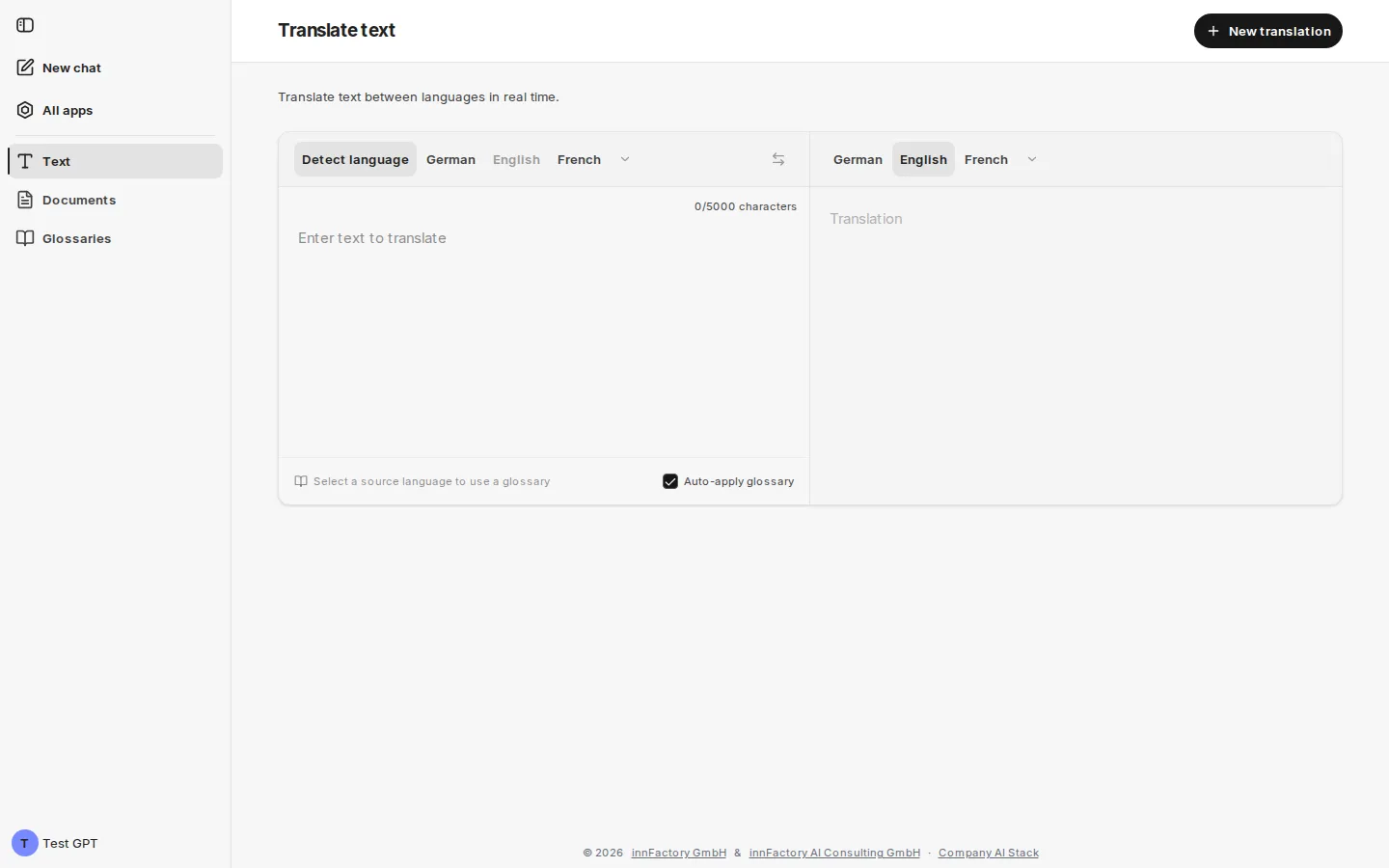
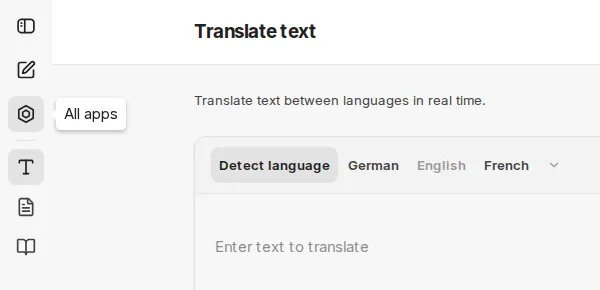
If an area has sub-pages, for example in companyADMIN, the expanded sidebar shows the sub-pages of the current area indented below it.
Your browser remembers whether the sidebar is expanded or collapsed, for all addons together.
On a smartphone
Section titled “On a smartphone”In narrow windows, for example on a smartphone, a header replaces the sidebar:
- on the left Open sidebar,
- in the middle the title of the current page,
- on the right the page’s actions (several actions are grouped under More options) and New chat.
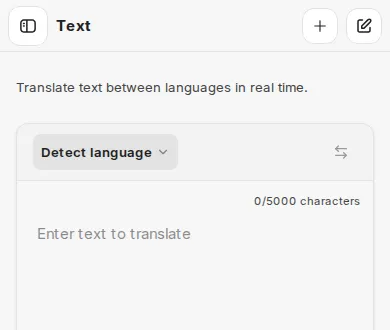
Open sidebar slides the menu in across the full width. At the top are Close sidebar, the name of the addon, New chat and your account, below them All apps and the addon menu. Tapping an entry opens the page and closes the menu.
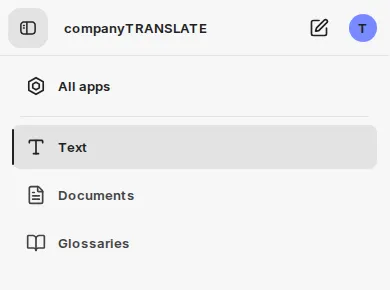
Account menu
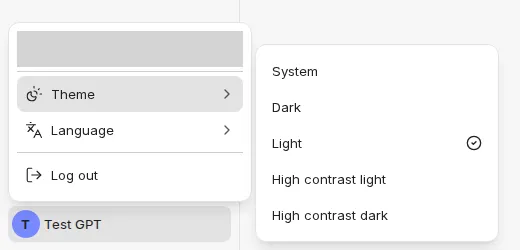
Section titled “Account menu”Clicking your profile picture opens the account menu:
- Your email address. Some addons show an additional line below it; companyADMIN, for example, shows your role (Superadmin or Admin (no superadmin)).
- Theme: System, Dark, Light, High contrast light or High contrast dark. System follows your operating system’s setting.
- Language: for example Deutsch or English, if the addon offers several languages. The choice applies to the addon.
- Log out signs you out of CompanyGPT, including the chat.
Depending on the addon, individual items may be missing, for example Language if the addon offers only one language.
Same theme as the chat
Section titled “Same theme as the chat”The theme is linked to the chat. An addon adopts the theme you chose in the chat. If you choose a different theme in an addon, it also applies in the chat. Merely opening an addon does not change anything in the chat.
Sign-in
Section titled “Sign-in”The addons use the CompanyGPT session. If you are signed in to the chat, you are also signed in to the addons; there is no separate sign-in per addon. The session is renewed in the background as long as you stay signed in.
Status pages
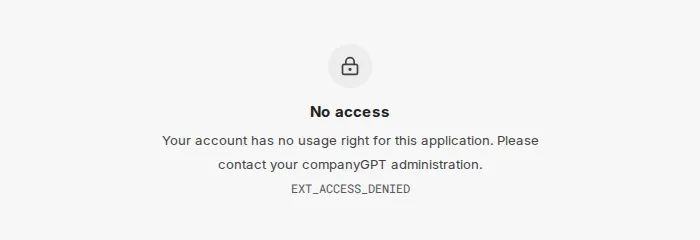
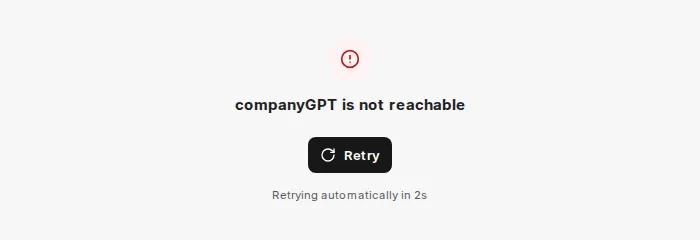
Section titled “Status pages”If an addon cannot show its content, a status page appears in the content area instead of an empty page. The sidebar then shows only New chat and All apps. For No access, your account may also appear; you can then sign out there and sign in with a different account.
| Status page | Meaning | What you can do |
|---|---|---|
| Sign-in required | You are not (or no longer) signed in. | Sign in takes you to the CompanyGPT sign-in. If you end up in the chat afterwards, open the addon again. |
| No access | You are signed in, but your account is not enabled for this addon. The text gives the reason, for example: Your account has no usage right for this application. Please contact your companyGPT administration. Below it is a code such as EXT_ACCESS_DENIED. | Contact your administrator and quote the code. |
| companyGPT is not reachable | CompanyGPT is not responding at the moment. The addon retries automatically and shows the waiting time (Retrying automatically in …s). | Retry starts a new attempt right away. After the last automatic attempt, Reload the page appears as well. |
| Logout failed | Logging out did not work. Note: Your session may still be active. | Retry starts the logout again. |
Embedded view in the chat
Section titled “Embedded view in the chat”Some addons show parts of their interface directly in the chat, for example the list in the Apps area of the chat sidebar, or views that an addon’s tools open in a response. These embedded views show only the content, without sidebar, header and account menu. They take the sign-in and the theme from the chat.