
companyTRANSCRIBE
BetacompanyTRANSCRIBE is a transcription application that, like CompanyGPT, runs in your company’s cloud environment. It transcribes audio and video files as well as recordings made directly in the browser, automatically separating the individual speakers. It also works the other way round, turning text back into audio.
Transcription is handled by the Azure Speech service in your Azure environment. For voiceovers, Azure OpenAI or Google (Chirp 3 HD) may additionally be enabled as providers, depending on the configuration – your administrator decides which providers are available.
Opening and signing in
Section titled “Opening and signing in”You open companyTRANSCRIBE in CompanyGPT via All apps and the Transcribe tile.
companyTRANSCRIBE uses your CompanyGPT session. If you are signed in to CompanyGPT, you are signed in to companyTRANSCRIBE too; there are no separate credentials.
Your administrator decides who may use companyTRANSCRIBE – depending on the environment, in companyADMIN via the Use transcription permission (see extension permissions) or via groups. If you lack access, companyTRANSCRIBE shows the No access page.
How the application is organised
Section titled “How the application is organised”companyTRANSCRIBE uses the shared interface of the CompanyGPT extensions. The sidebar holds New chat and All apps, followed by the application’s menu in two groups:
| Menu group | Entries |
|---|---|
| Transcripts | Transcripts (start page), Record, Upload |
| Voiceovers | Voiceovers, New voiceover |
The account menu offers Theme and Language, among other things; the interface is available in German and English. This documentation quotes the English labels. A page’s actions sit on the right of the page header: Record and Upload in the Transcripts overview, New voiceover in the Voiceovers overview. On narrow screens you open the menu via the header bar, which then also holds the actions.
The Transcripts start page lists every recording you have made or uploaded yourself (“Everything you have recorded or uploaded.”).
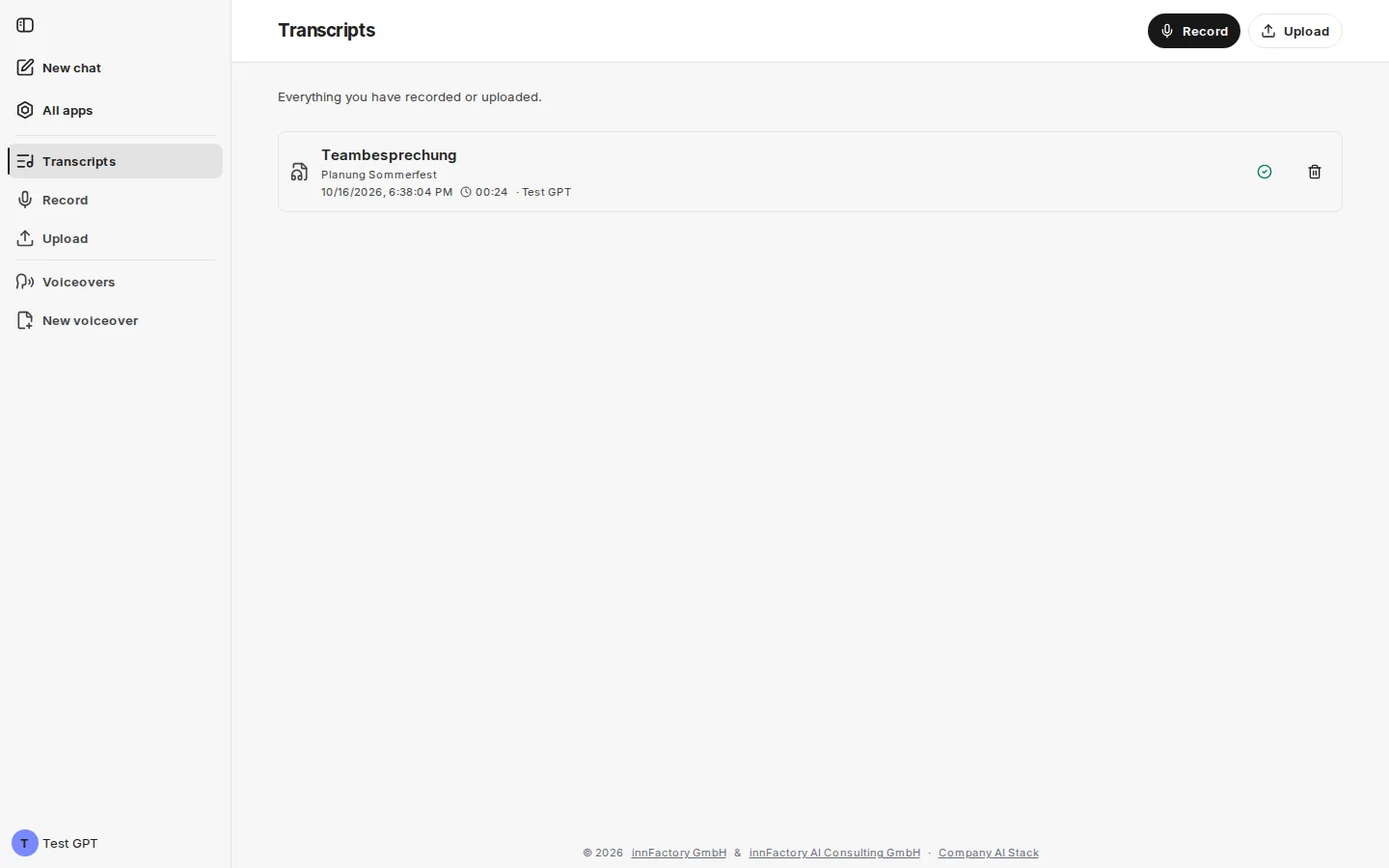
Each row shows the title, the description if there is one, creation time, audio length, and owner. Clicking the row opens the transcript. On the right are a status icon (finished, failed, or in progress) and the bin. The bin asks for confirmation before deleting; audio and transcript are deleted permanently.
The areas at a glance
Section titled “The areas at a glance”- Recording and transcribing — choose the audio source and speaker detection, record in the browser, or upload a file; what happens when the connection drops.
- Editing transcripts — metadata, text correction, speaker assignment, and Markdown export.
- Voiceovers — turn text into audio using an AI voice.
- Access from CompanyGPT — use transcripts and voiceovers in the chat via the MCP server.
Supported formats and limits
Section titled “Supported formats and limits”| Aspect | Value |
|---|---|
| Audio and video formats on upload | common audio and video files, e.g. .mp3, .wav, .m4a, .mp4, .webm |
| Maximum file size on upload | 200 MB |
| Maximum length | 240 minutes (4 hours) on upload and for recordings with speaker detection |
| Language | German |
| Speaker detection | up to 35 voices per recording |
| Export | speaker-labelled Markdown file (.md) |
For video files, the audio track is extracted automatically. Transcription runs as a background job; progress is visible in the application.
Data storage
Section titled “Data storage”All transcriptions are stored in a per-user history where they can be viewed, edited, or deleted. Audio, transcripts, and voiceovers are kept in your company’s cloud environment.
For transcription, the audio is sent to the Azure Speech service. For a voiceover, the text goes to the selected provider – with Google (Chirp 3 HD), to Google Cloud Text-to-Speech.