
Projects
Projects let you organize related conversations into named workspaces. They are useful for long-running workstreams, teams, clients, or any topic where you want a focused set of chats without relying on search alone.
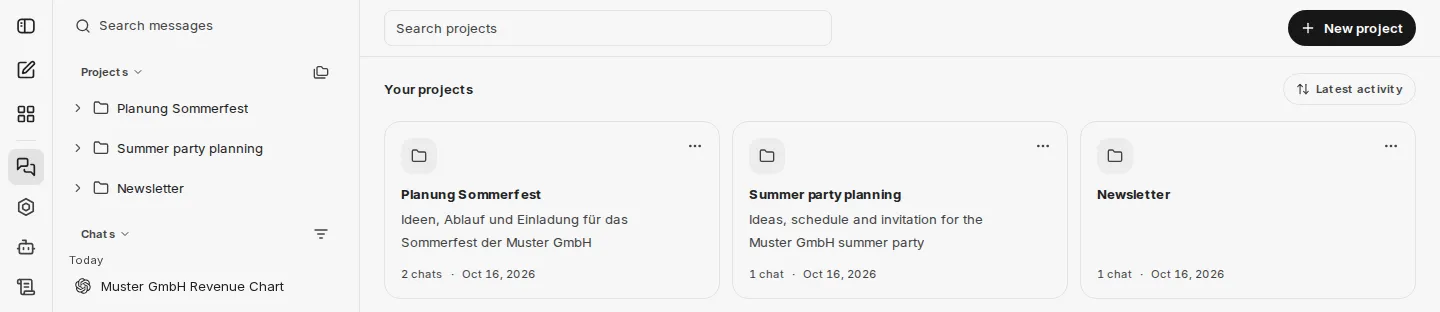
What Projects Do
Section titled “What Projects Do”- Group conversations under a project and give the project a description
- Start a new chat directly inside a project
- Add instructions and reference files for all chats in a project
- Assign an existing conversation to a project, move it to another project, or remove it again
- Browse and sort project chats in the project workspace
- Search and sort the project list
- Edit or delete projects
Projects are personal and only visible to the person who creates them. Other users do not see your project list.
Create a Project
Section titled “Create a Project”In the chat history, you will find the Projects area above the pinned chats. As long as you do not have a project yet, create one there with New project. Otherwise, open the project overview with the All projects icon next to the heading and choose New project there.
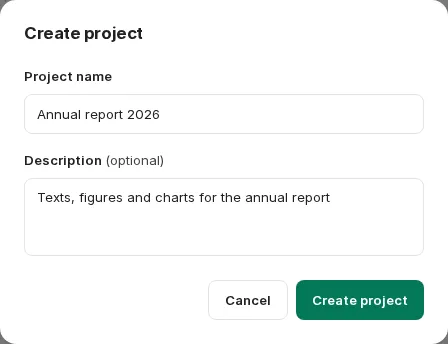
In the Create project dialog, enter a Project name and an optional Description. CompanyGPT then opens the project workspace.
Inside the project workspace, use New chat to start a conversation that is automatically assigned to that project. The same function is available in the chat history via the icon next to each project.
Instructions and Files
Section titled “Instructions and Files”In the project workspace, you add instructions and reference files for all chats in the project. This is currently only available in the new chat interface.
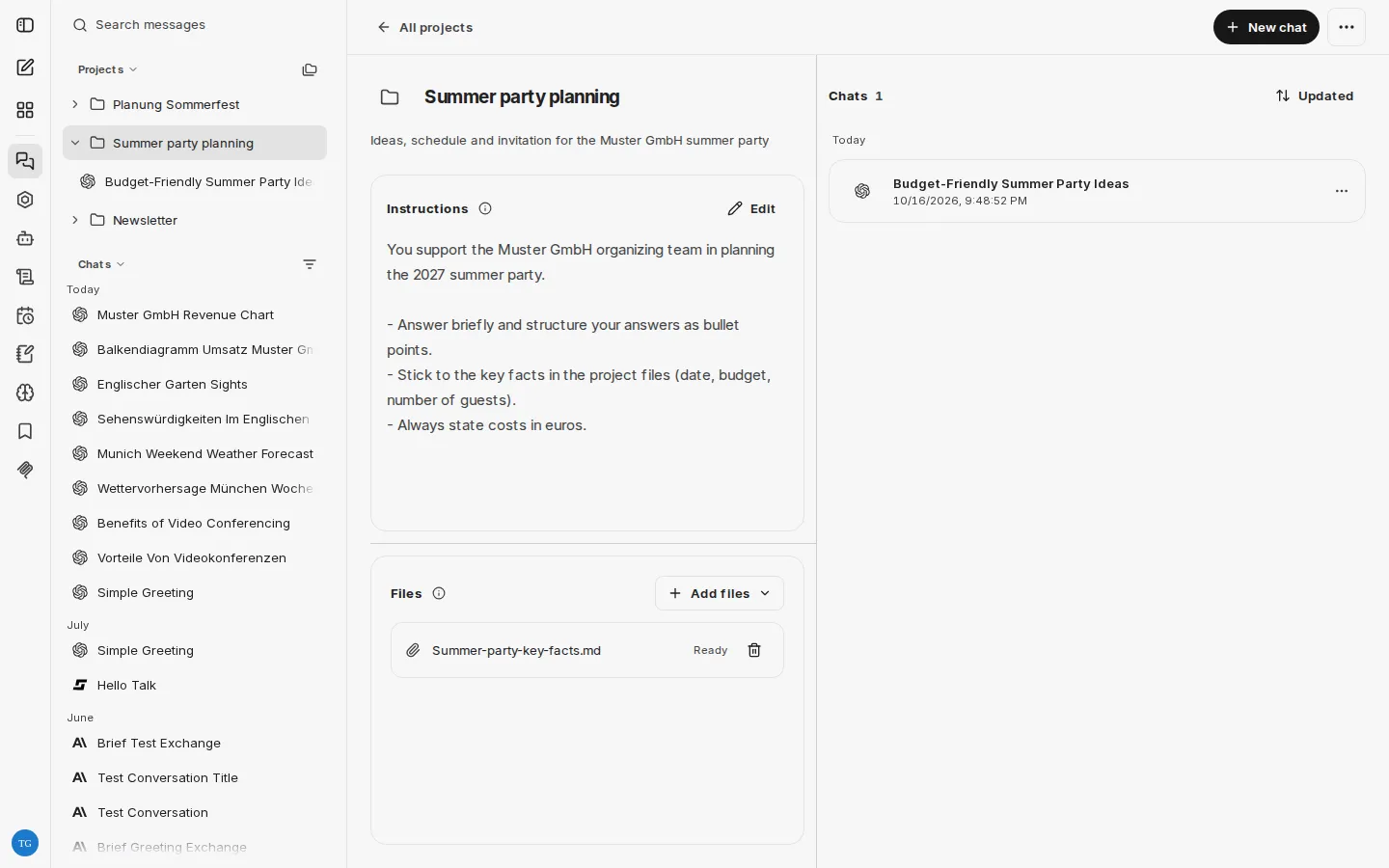
- Instructions: Use Edit to set the tone, goals, or background for all chats in the project. The instructions apply to new messages in the project; earlier messages are not changed. The rules of your environment still apply.
- Files: Use Add files to upload files (Upload from device) or to choose from files you have already uploaded (Choose from your files). If file search is active, the chats in the project use matching excerpts instead of entire files. Removing a file only affects future messages.
Assign Existing Chats
Section titled “Assign Existing Chats”In the chat header, open the Chat options menu and point to Change project. Select the project in the submenu. Use Remove from project to remove a chat from its project again. The same entries are available in a chat’s menu in the project workspace. Alternatively, drag a chat onto a project in the chat history.
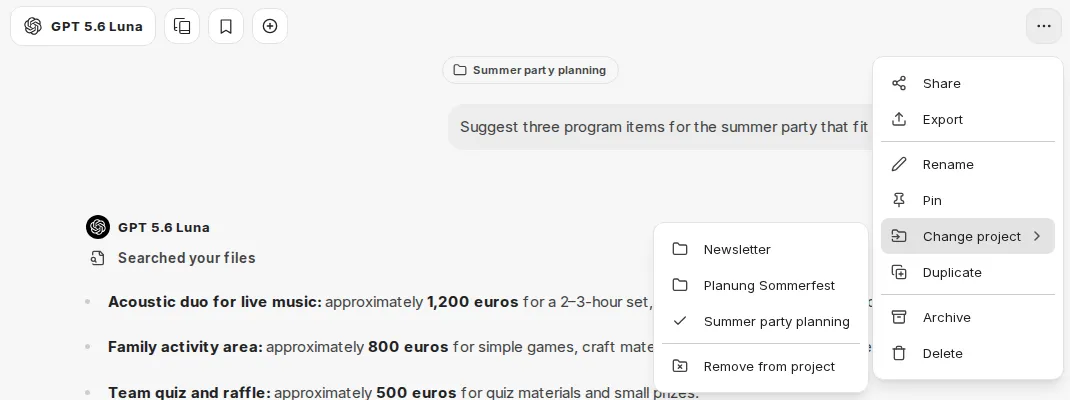
By default, chats assigned to a project only appear in that project and no longer in the Chats list of the chat history. To show them there again, use the Show project chats option in the chat list’s filter menu.
Manage Projects
Section titled “Manage Projects”In the chat history, each project can be expanded to show its latest chats. Show All opens the project workspace. Use the project menu to:
- Open the project workspace (Open project)
- Edit the project’s name and description (Edit project)
- Delete the project
In the project workspace, you can also edit the name and description directly by clicking them. The menu at the top right of the workspace contains Delete project.
The project overview (All projects) shows all your projects with the number of their chats. There you can find projects with Search projects and sort them by Latest activity, Created, or Name.
Deleting a project only removes the project assignment from its chats. The conversations themselves are not deleted.
- Project workspaces have their own chat list, which can be sorted by Updated or Created.
- Chats started from within a project keep that project assignment.
- If you delete a project while its workspace is open, CompanyGPT returns you to the project overview.