
Skills
Skills are reusable instructions that specialize the AI assistant for specific tasks. They extend the assistant’s capabilities without requiring you to rewrite complex prompts every time.
Skills overview
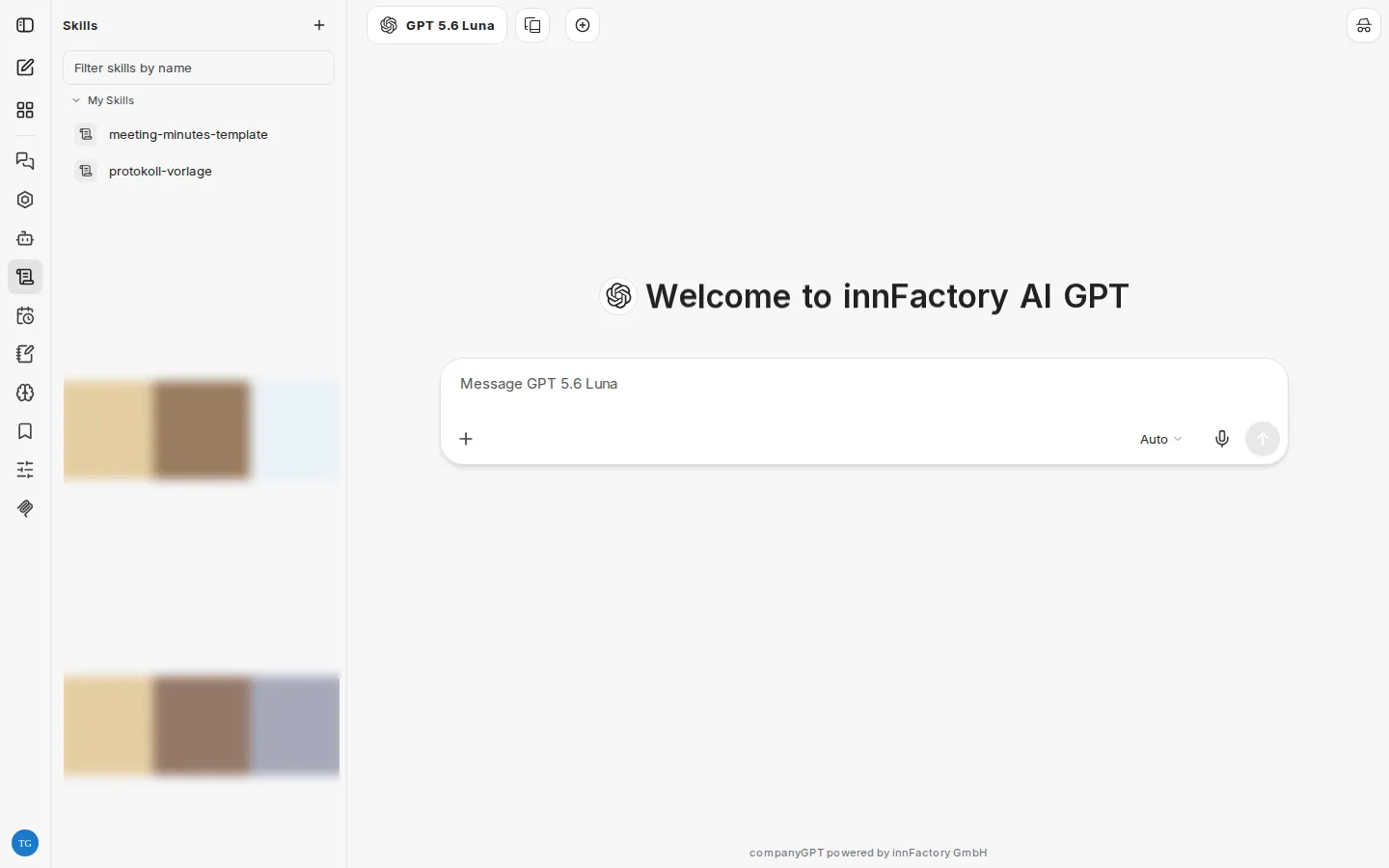
Section titled “Skills overview”Skills are managed in the left sidebar under Skills. Under My Skills, you can see all your skills at a glance.
Creating a skill
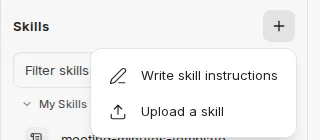
Section titled “Creating a skill”Click the + button at the top of the Skills sidebar to create a new skill. A dropdown menu appears with two options.
Write skill instructions
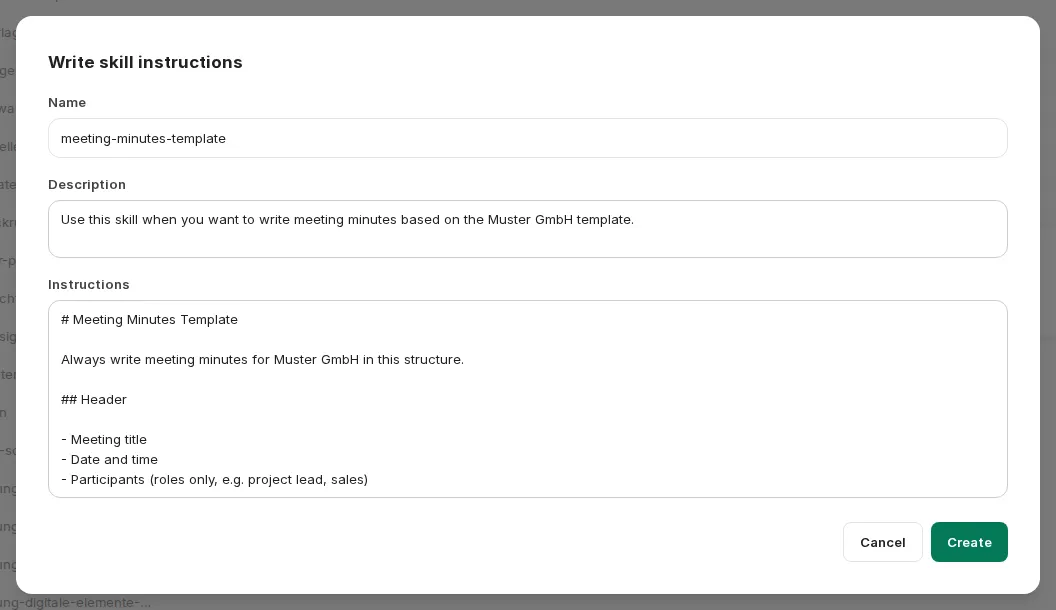
Section titled “Write skill instructions”Select Write skill instructions to create a skill yourself. You need to fill in the following fields:
- Name – A unique name for the skill
- Description – A short explanation of when and what the skill is used for
- Instructions – The actual instructions in Markdown format
Upload a skill
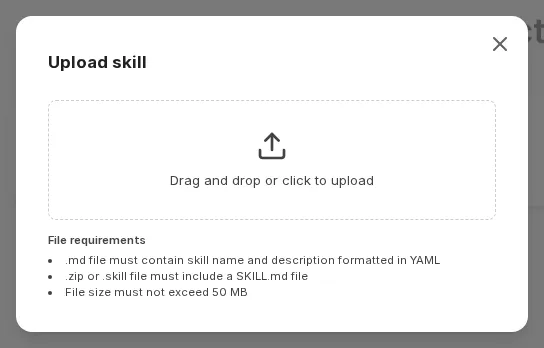
Section titled “Upload a skill”Select Upload a skill to upload an existing skill file via drag & drop or click.
The following file formats are supported:
| Format | Requirements |
|---|---|
.md | Must contain skill name and description in YAML |
.zip / .skill | Must include a SKILL.md file |
The file must not exceed 50 MB.
A .zip file contains a folder with the SKILL.md and, optionally, further files, for example detailed guides under references/ or scripts under scripts/. The assistant reads these files when needed. When Run Code is active, they are also available read-only in the sandbox under /mnt/data/skills/<skill-name>/, so bundled scripts can be run.
Skill view
Section titled “Skill view”The detail view of a skill shows the rendered content with description and Markdown content, for example tool tables or decision guides.
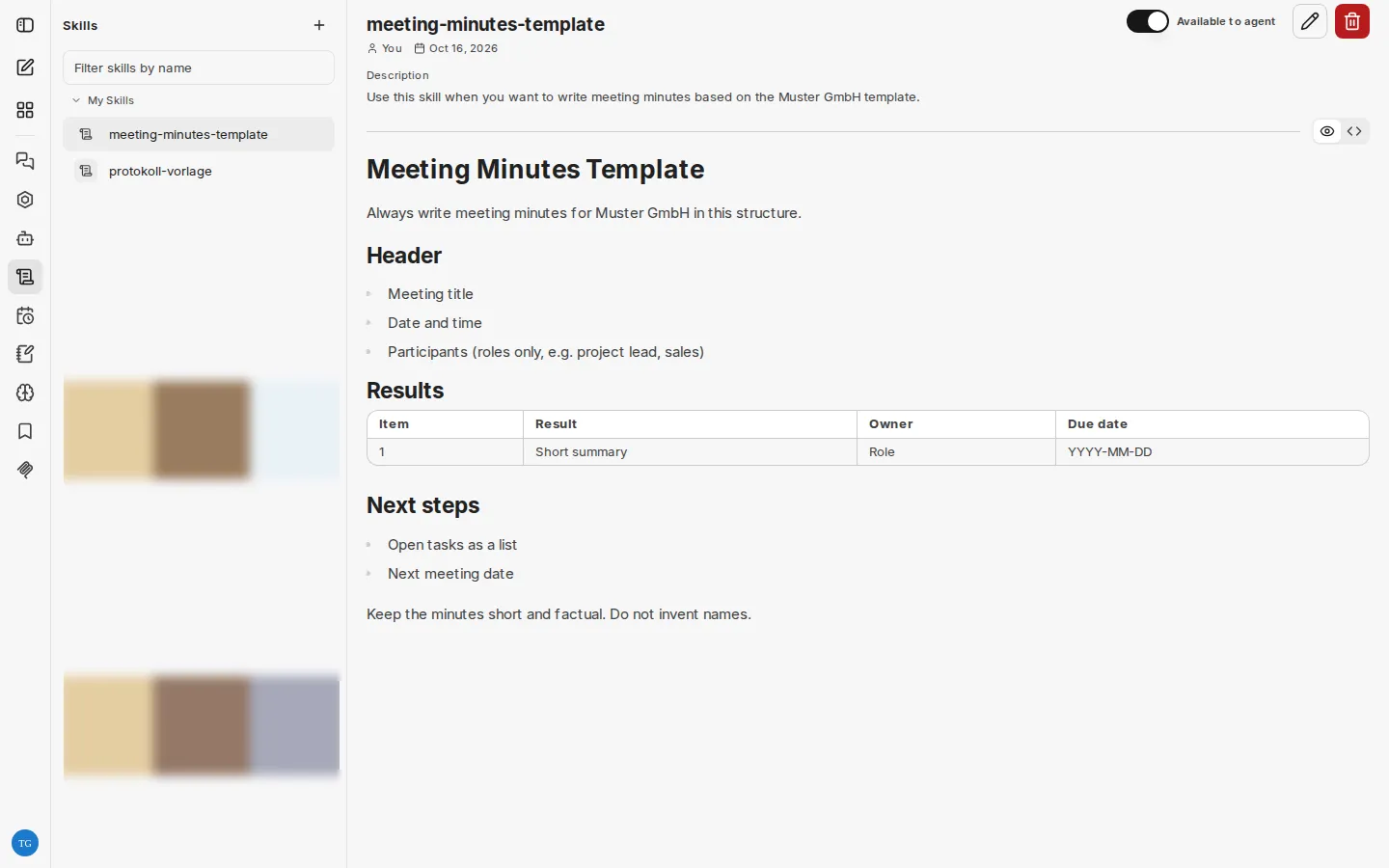
From here, you can:
- Make available to agents or not – using the Available to agent switch in the top-right corner. When it is on, an agent can use the skill in new messages. The setting applies only to you.
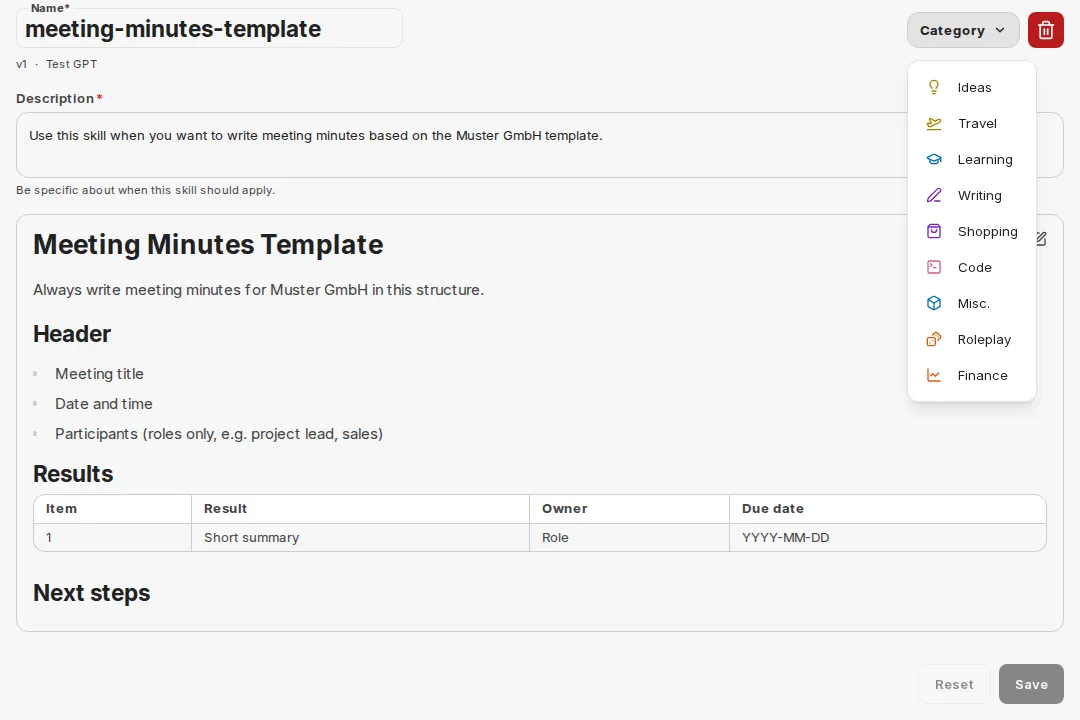
- Edit – adjust instructions, name, or category
- Delete – remove the skill permanently
Editing a skill
Section titled “Editing a skill”Open a skill and click Edit to adjust name, description, instructions, and category.
Adding skills to agents
Section titled “Adding skills to agents”Skills can also be assigned directly to an agent. Open the agent and choose one of three modes in the Skills section:
| Mode | Effect |
|---|---|
| Off | The agent uses no skills. |
| All | The agent has access to all skills that are available to you and made available to agents. The list of available skills can be expanded. |
| Selected | The agent only uses the skills you have selected. |
In Selected mode, add skills via Add skill. A dialog opens where you can browse the available skills and add them to the agent. Use the cross next to a skill to remove it from the selection again. This lets you precisely control an agent’s capabilities.